Author: Christophe

  • Social media: A personal touch in an impersonal world

    Seven Creative’s well established and new customers are recognising the growing importance of social media. We’re proud to say that we can now offer customers new and innovative services ranging from writing blog entries, Twitter posts and Facebook updates, to designing and personalising social networks.

    Ellie Storey, Social Media Manager at Seven Creative,  said “There is so much competition on the digital high street that simply having a website is often not enough. So due to the changing needs of our customers, and demand, we have expanded our services to include a new social networking service.”

    Twitter now boasts an impressive 175 million users, and Facebook has 640 million users across the globe, half of which log on daily. Blogs are increasingly common and websites including Search Engine Optimised text are now a must in order to compete successfully.

    Seven Creative’s principle designer Chris Day said, “Using social networks to increase visibility is something we all need to do these days as the landscape of the internet changes. Social network integration is often difficult to get to grips with and certainly not something most business owners have the time to do properly. That’s where we come in.”

    “We can provide the full spectrum of social networking services to get your business in front of your customers. We are able to assess how your company can benefit from social networking and work with your available budget to help you get the best from it, ” said Chris.

    Social Media: The Benefits

    • Social media allows your customers to immediately give feedback on your products, services and marketing techniques.
    • It provides you with an easily accessible personal relationship with your customers that is designed to make them want to support your company and buy your product.
    • It provides you with advertising and encourages a sense of camaraderie between you and your customer.
    • Social media is a great way for your customers to remember you, your product and your brand. It’s also about customers getting to know other people and a product or service, with product loyalty being an end goal.
  • Short-cut to easily clear formatting from text in a Word document

    Clearing formatting from a Word document
    Clearing formatting from a Word document

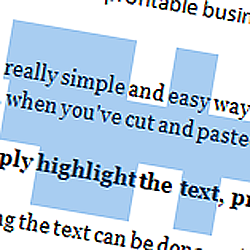
    Here is a really simple and easy way to clear formatting from text in a Microsoft Word document, for example, when you’ve cut and pasted from a website or another document

    Very simply highlight the text, press and hold CTRL then press the ‘space bar’

    Highlighting the text can be done easily in one of three ways:

    1. Press CTRL + A to select all
    2. place the cursor just before the text you’d like to highlight, press and hold the left-mouse button and drag the hightlighted area over the text you’d like to highlight
    3. Place the cursor at the start of the text you’d like to highlight, press and hold the ‘SHIFT’ button and use the arrow keys to move the highlighted area to the right place
    Please note, if you’d like to select non-adjoining areas of text at the same time, press and hold the ‘CTRL’ key while you’re selecting text
  • My 3 favourite Chrome extensions (plug-ins)

    Here is a list of my 3 favourite Chrome Plug-ins

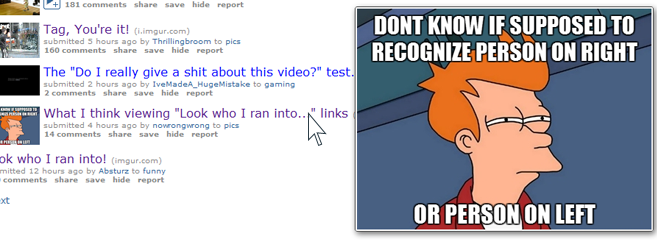
    1. Hover Zoom – no need to click on that thumbnail to view it large. Simply install Hover Zoom then all you have to do is hover over the picture and you get a large version. Great for Reddit.

      Hover Zoom
      Hover Zoom
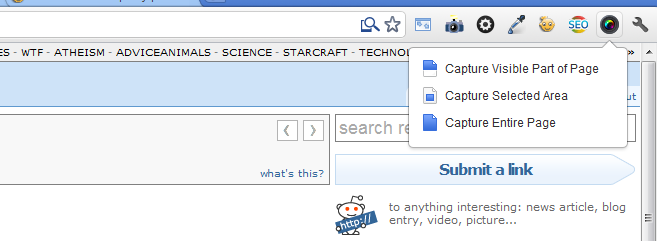
    2. Awesome Screenshot: Capture & Annotate – allows you to capture either the visible area of your screen or the full webpage. You can then annotate it. Very useful for describing  what you can see on your screen to someone else like tech support.
      Awesome Screenshot: Capture & Annotate
      Awesome Screenshot: Capture & Annotate

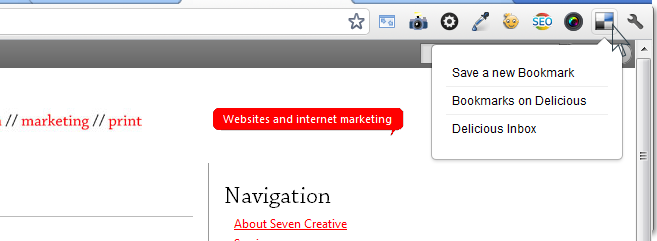
      3. Delicious Tools – sure makes adding a bookmark to Delicious a whole lot easier and quicker. Simply click the button and add the tags.

      Delicious ToolsDelicious Tools

  • Outlook 2007 – adding SMTP authentication

    When using a laptop or mobile device, you’re potentially going to be sending emails over many different internet networks. In order to make sure that only the allowed users are using a particular SMTP to send email, they commonly require a user-name and password to log into the SMTP server every time an email is sent. This is not something you’d normally notice as your computer should do this automatically in the background, however, if that authentication fails, you’ll not be able to send emails

    If your outgoing email server on Outlook 2007  requires authentication, use the following steps to add the user-name and password:

    1. Open Outlook
    2. Click the ‘tools’ tab from the top menu then click ‘account settings’
    3. Highlight the account you’d like to edit then select ‘change’
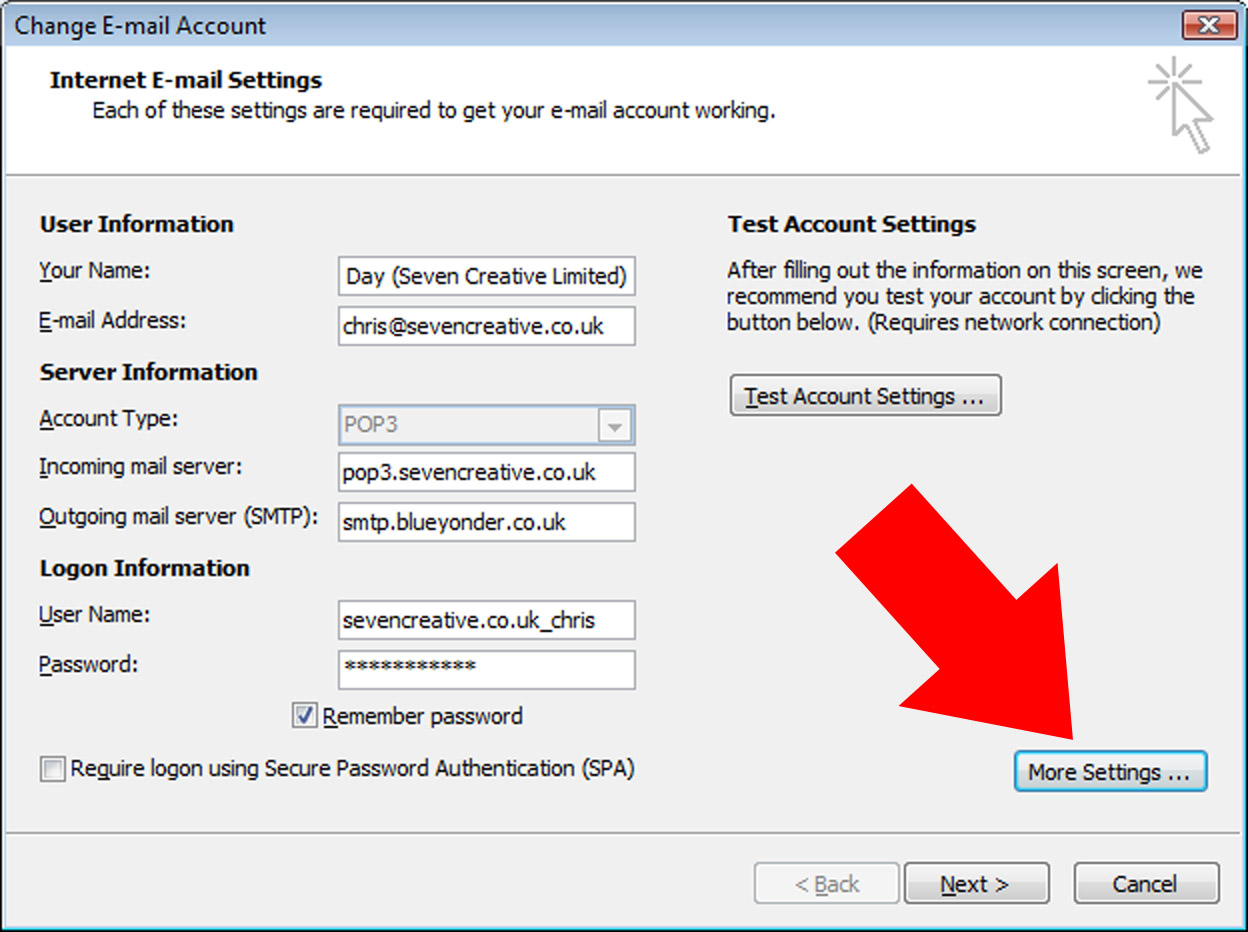
    4. On the internet e-mail settings page click ‘more settings’

      On the internet e-mail settings page click ‘more settings’
      On the internet e-mail settings page click ‘more settings’
    5. On the new window, click the ‘outgoing server’ tab

      On the new window, click the ‘outgoing server’ tab
      On the new window, click the ‘outgoing server’ tab
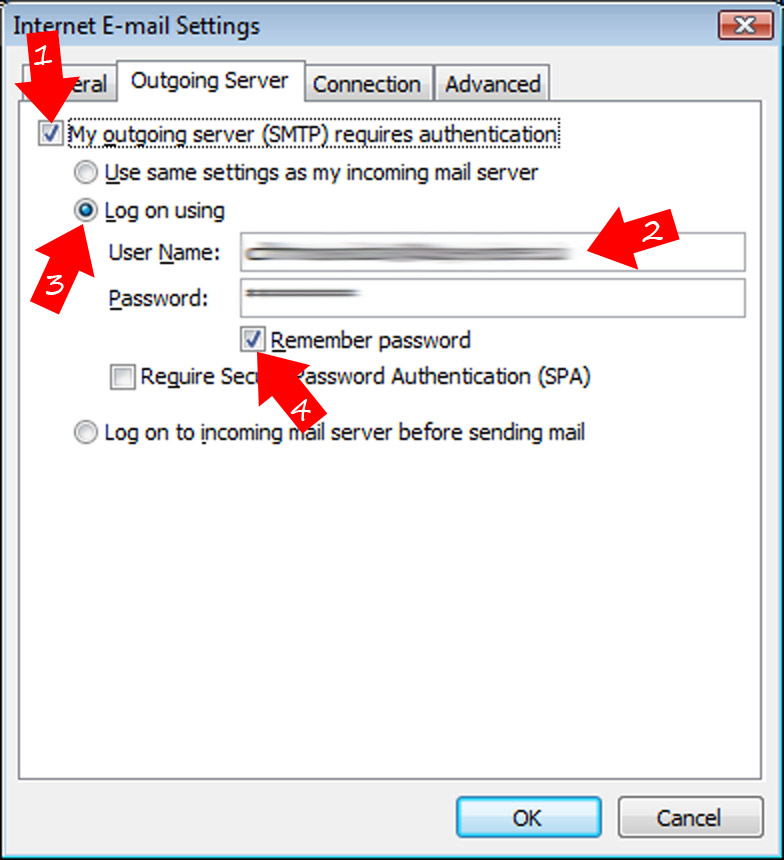
    6. Change the following settings:
      1. Tick the box ‘my outgoing server requires authentication’
      2. Tick the ‘log on using’ button
      3. Type in your normal username and password
      4. Tick the ‘remember password’ button
    7. Click ‘OK’ which will take you back to the main ‘email settings’ page
    8. Click ‘next’
    9. Click ‘finish’
  • 553 sorry, that address is not in my list of allowed recipients email problem

    553 sorry, that address is not in my list of allowed recipients email problem

    if you’re regularly getting emails bounced back to you with the error ‘553 sorry, that address is not in my list of allowed recipients’ this might help.

    In our experience, the problem is usually down to a BT issue not allowing emails to be delivered.

  • Most common causes for emails not going through

    Are the occasionals emails not going through to the recipient? Here is a list the most common causes:

    • Are your emails simply ending up int he the recipients spam folder? Sounds obvious but this is the final main cause of emails not going through that make up the ‘big 3’. Check there first – it’s the fastest and one of the most common reasons your email isn’t being received
    • The ’email address miss-pelt’ accounts for a good proportion of email delivery problems, in my experience. Check you have spelt the bit after the ‘@’ correctly first by copying the domain and pasting it into your browser address bar. If it doesn’t resolve to a website, it’s probably because of that.
      • Carefully check the first part of the address is right (usually the recipient name). Some email accounts aren’t set up to catch misspelled email addresses so a simple extra ‘.’ In the name might mean the difference between being received or rejected
      • Following on from the previous points; is the domain extension right? Have you sent the email to ‘.co.uk’ when it should have gone to ‘.com’ instead?
    • One of the other main reasons emails don’t go through is due to either the domain or the sender’s IP being blocked by the recipients spam filter. If you got an ‘undelivererable’ report back when you tried to send your email, read it carefully as there’s normally a link there to ‘unblock’ your IP address
    • Did you send an attachment? Big attachments will cause many emails to be rejected. Many email addresses won’t accept attachments over 10MB. Try sending without the attachment
    • Check with your internet connection supplier. Some draconian setups from certain providers, who will remain nameless, put very heavy restrictions on sending email through their lines. On occasion, sending too many email triggers restrictions and in other instances, recipient’s domain names have had to be defined with them in advance
    • Firewalls and spam filters aren’t always particularly fond of emails that contain links, images and attachments (particularly executable attachments). Even emails that are too short sometimes trigger spam filters. Try writing a plain text email with no attachments to see if this is the cause
    • If you’re using a mail server, such as Exchange, there is a chance that it is incorrectly configured. This has been the cause of several of our customer’s problems in the past.

    If all of the steps above don’t work, try the following

    • Call the recipient and ask them to email you. Replying to their email means you take human error out of the equation
    • Email them from a different email account on a different server, e.g. Hotmail, Gmail or Yahoo Mail. This takes any potential SMPT error out of the equation

    Still not working? Then it’s probably due to your emails being blocked or bounced by the recipients Spam filter. Contact their IT support and ask them to add your domain to their ‘safe senders’ or ‘white’ list

  • How to create an outlook email template

    How to create an outlook email template

    If you use Outlook and often have to write similar emails, Instead of re-writing them every time it might be a better idea to create a template.

    This is very simple to do and might save you a lot of time! Here’s how to do it:

    1. Write your email as normal including subject and content
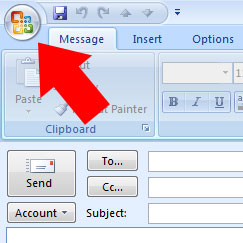
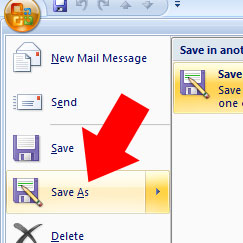
    2. Click the Outlook button and choose ‘save as’
    3. Click the Outlook button
      Click the Outlook button
    4. When the save dialogue box appears, save the message on your computer.
    5. Choose 'save as' from the drop down menu
      Choose 'save as' from the drop down menu

    Now, when you want to use your template, just double click the saved email and you can use as many times as you like

  • Instructions about how to back up and export webmail emails from Horde


    Instructions about how to back up and export webmail emails from Horde
    Instructions about how to back up and export webmail emails from Horde

    Instructions about how to back up and export webmail emails from Horde

    If you’re using Horde to manage your webmail emails and want to back them up, you may have realised that it seems to be not as easy to do as you’d hope without going through and forwarding email groups individually

    Fortunately, it is actually pretty simple if you know how to do it and here’s how:

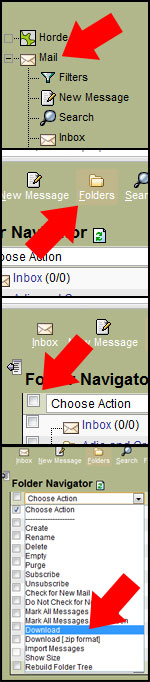
    1. Click on ‘mail’ on the left menu
    2. Click on ‘folders’ from the top menu
    3. Tick the boxes of the folders you’d like to export
    4. From the drop-down box ‘actions’ select ‘download’

    This will download your emails in an ‘MBOX’ container file format

    Alternatively, if you want to forward your messages in groups; view the emails you’d like to forward, tick the box next to them and then click on ‘forward’ which should be just above the top email

    Horde
    Horde
  • Phishing emails – tell-tale signs it’s not from who it says it’s from

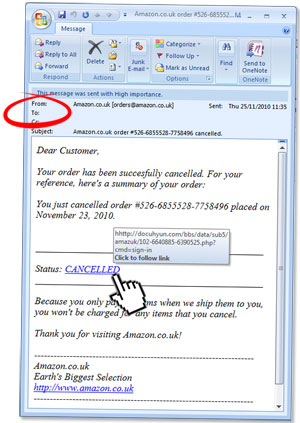
    Emails aren't always from who they say they're from!
    Emails aren't always from who they say they're from!

    I’ve just received quite an ingenious phishing email… well it’s slightly more intelligently conceived and implemented than the usual type

    Yesterday I made an order on Amazon and today I get an email, pertaining to be from Amazon, telling me that my order has been cancelled!

    Firstly, even though I’m sure that me receiving an Amazon order cancellation the day after making an order with them is purely coincidence, for me, as for many other people, Amazon account for the majority of everything I personally spend online so the chances of me having made a recent purchase are pretty high. Anyway, even if I hadn’t, my first reaction would have been ‘has my account been hacked?’ so I would have wanted to find out.

    Secondly, it’s perfectly within the realms of possibilities that an order may have been cancelled –cards get stopped, vendors run out of stock… there are numerous reasons for this so you’d have no reason to, on first glance, assume that the email was legitimate.

    Thirdly, the spelling and grammar was correct. On the one hand it amazes me have many grammatical mistakes there are in the average phishing email. I’m sure some of these are to avoid detection by spam filters but many other are simple mistakes that even pasting the text into Google or Word would fix. On the other hand, anyone stupid or foolhardy enough to think that to conduct a phishing campaign is a good idea can’t be the sharpest of twigs!

    There are some massive tell-tale signs, though, that this email is not from who it says it’s from!

    The one that first alerted me was that Amazon don’t send account and order notifications in that format using that font. If you’re on their mailing list, you’ll no doubt get your ‘deals of the week’ in rich text but everything else pertaining to your account is in a pretty standard format – order confirmations, despatch notes, etc. – will be standard format. I wouldn’t be surprised if the person who sent this email had never ordered anything from Amazon!

    The other this I always do is check the domain within the links. This one wasn’t Amazon so I wasn’t clicking it

    You can also use your common sense and examine the email a bit more closely. I have 8 email account sI use through Outlook and many of these are catch-all addresses. I only, however, have one email address registered with Amazon. If I get an email pertaining to be from Amazon to an email address I haven’t got registered with them, I know it’s probably not legitimate.

    The advice is as always; if you get an email asking you to click on a link to go to a site; don’t do it. If you’re not sure, open your browser and go directly to the website. Log in there and then check your messages or account status directly.

  • Take another look at the Amazon Kindle

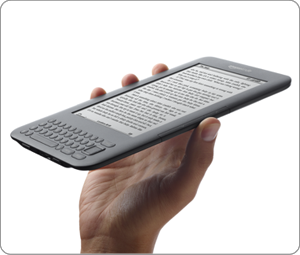
    New Amazon Kindle wireless reading device
    New Amazon Kindle wireless reading device

    If you’re anything like me you’ve probably always dismissed the idea of the Amazon Kindle before looking into it in any real detail. I have, however, looked into it in a bit more detail recently and am very impressed by the spec! The following might just sway you too:

    • It’s got a high-contrast super-bright screen that’s as easy to read in bright sunlight as paper so can be used almost anywhere
    • It has up-to a months battery life so you’re not tied to a plug socket
    • It has Wi-Fi so you can download books direct. The Kindle 3G (3G + Wi-Fi) can also download books and access the Kindle store for free over 3G–with no monthly bills or annual contracts
    • It holds up-to 3,500 books in its memory
    • Its wireless so doesn’t require any computer connection although can be connected using USB if required
    • And the best bit? It only costs £109 for the standard Wi-Fi version and only £149 for the Wi-Fi + 3G version!

    Here are the other technical specifications (Wi-Fi version/Wi-Fi+3G version)

    • Display size: 6 inch diagonal
    • Overall size: 109mm x 123mm x 8.5mm
    • Weight: 241/247grams
    • Capacity: 3,500 books
    • Battery life with wireless turned off: 1 month
    • Battery life with wireless turned on: 10 days
    • New book download time: 60 seconds
    • Text to speak: yes (this means it’ll read your book to you)
    • Price: £109/£149