Category: Tutorial

  • Short-cut to easily clear formatting from text in a Word document

    Clearing formatting from a Word document
    Clearing formatting from a Word document

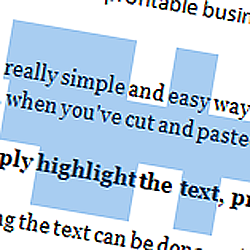
    Here is a really simple and easy way to clear formatting from text in a Microsoft Word document, for example, when you’ve cut and pasted from a website or another document

    Very simply highlight the text, press and hold CTRL then press the ‘space bar’

    Highlighting the text can be done easily in one of three ways:

    1. Press CTRL + A to select all
    2. place the cursor just before the text you’d like to highlight, press and hold the left-mouse button and drag the hightlighted area over the text you’d like to highlight
    3. Place the cursor at the start of the text you’d like to highlight, press and hold the ‘SHIFT’ button and use the arrow keys to move the highlighted area to the right place
    Please note, if you’d like to select non-adjoining areas of text at the same time, press and hold the ‘CTRL’ key while you’re selecting text
  • Outlook 2007 – adding SMTP authentication

    When using a laptop or mobile device, you’re potentially going to be sending emails over many different internet networks. In order to make sure that only the allowed users are using a particular SMTP to send email, they commonly require a user-name and password to log into the SMTP server every time an email is sent. This is not something you’d normally notice as your computer should do this automatically in the background, however, if that authentication fails, you’ll not be able to send emails

    If your outgoing email server on Outlook 2007  requires authentication, use the following steps to add the user-name and password:

    1. Open Outlook
    2. Click the ‘tools’ tab from the top menu then click ‘account settings’
    3. Highlight the account you’d like to edit then select ‘change’
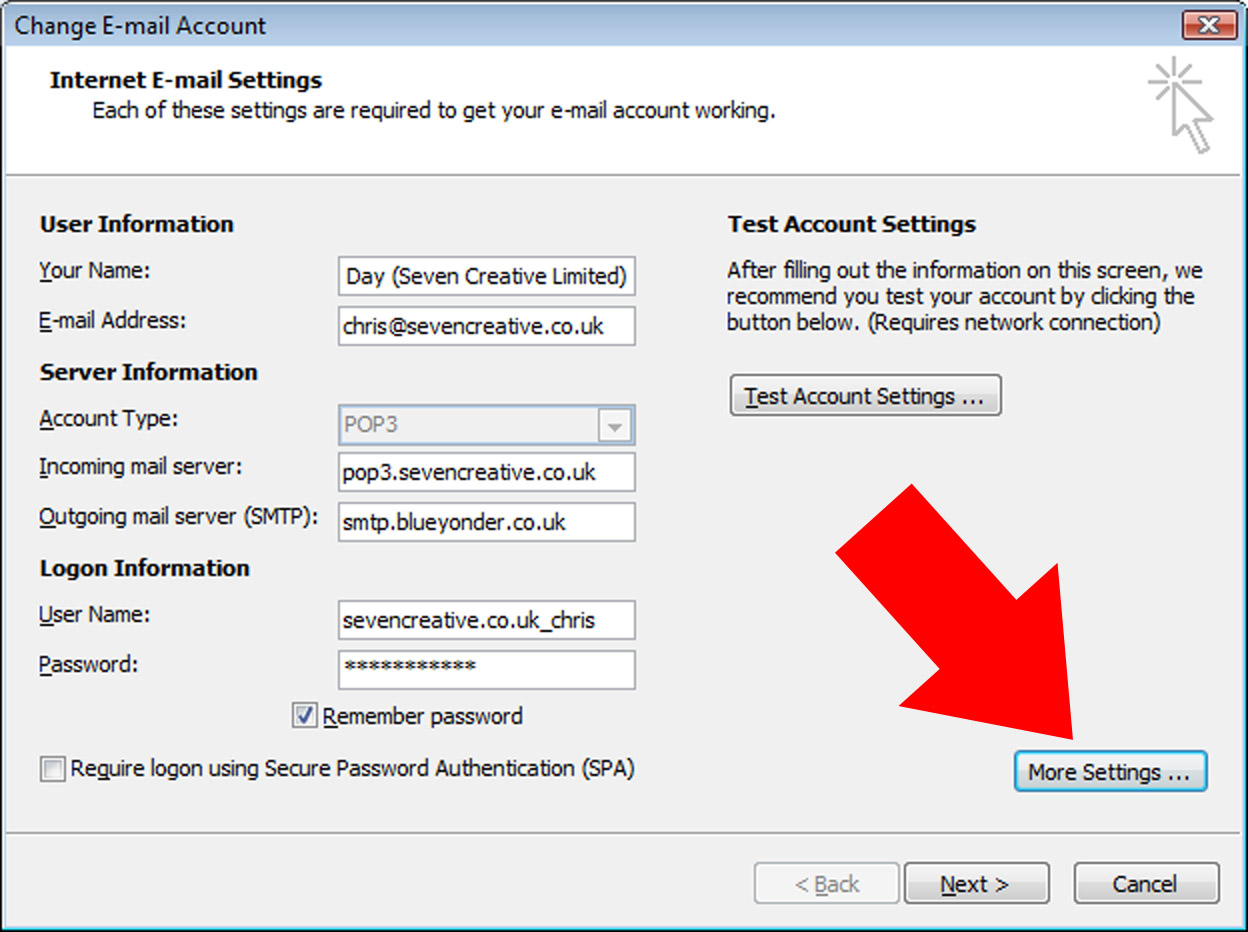
    4. On the internet e-mail settings page click ‘more settings’

      On the internet e-mail settings page click ‘more settings’
      On the internet e-mail settings page click ‘more settings’
    5. On the new window, click the ‘outgoing server’ tab

      On the new window, click the ‘outgoing server’ tab
      On the new window, click the ‘outgoing server’ tab
    6. Change the following settings:
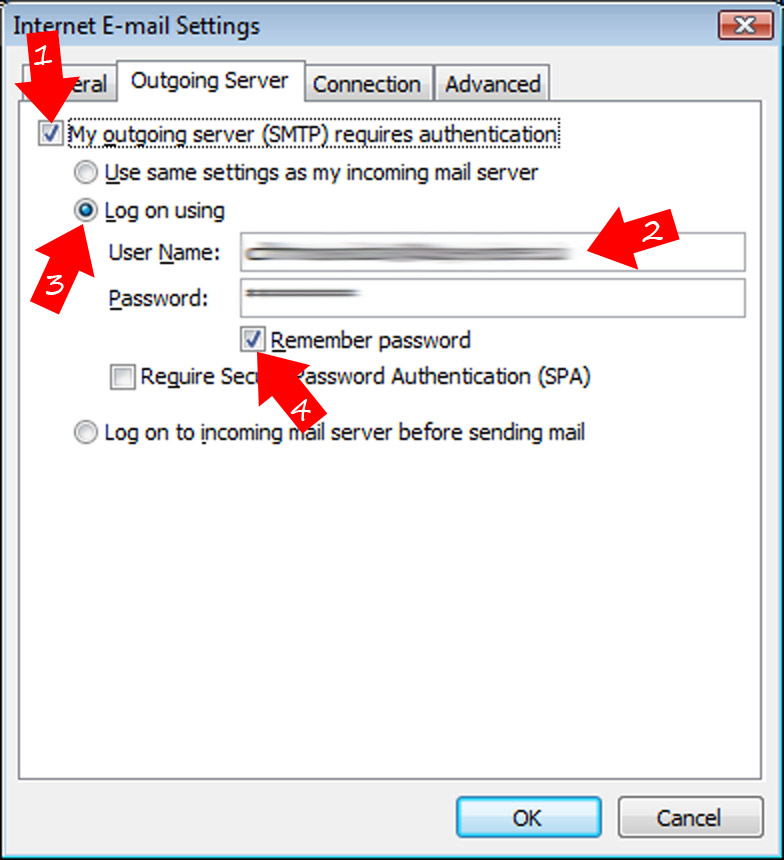
      1. Tick the box ‘my outgoing server requires authentication’
      2. Tick the ‘log on using’ button
      3. Type in your normal username and password
      4. Tick the ‘remember password’ button
    7. Click ‘OK’ which will take you back to the main ‘email settings’ page
    8. Click ‘next’
    9. Click ‘finish’
  • 553 sorry, that address is not in my list of allowed recipients email problem

    553 sorry, that address is not in my list of allowed recipients email problem

    if you’re regularly getting emails bounced back to you with the error ‘553 sorry, that address is not in my list of allowed recipients’ this might help.

    In our experience, the problem is usually down to a BT issue not allowing emails to be delivered.

  • Most common causes for emails not going through

    Are the occasionals emails not going through to the recipient? Here is a list the most common causes:

    • Are your emails simply ending up int he the recipients spam folder? Sounds obvious but this is the final main cause of emails not going through that make up the ‘big 3’. Check there first – it’s the fastest and one of the most common reasons your email isn’t being received
    • The ’email address miss-pelt’ accounts for a good proportion of email delivery problems, in my experience. Check you have spelt the bit after the ‘@’ correctly first by copying the domain and pasting it into your browser address bar. If it doesn’t resolve to a website, it’s probably because of that.
      • Carefully check the first part of the address is right (usually the recipient name). Some email accounts aren’t set up to catch misspelled email addresses so a simple extra ‘.’ In the name might mean the difference between being received or rejected
      • Following on from the previous points; is the domain extension right? Have you sent the email to ‘.co.uk’ when it should have gone to ‘.com’ instead?
    • One of the other main reasons emails don’t go through is due to either the domain or the sender’s IP being blocked by the recipients spam filter. If you got an ‘undelivererable’ report back when you tried to send your email, read it carefully as there’s normally a link there to ‘unblock’ your IP address
    • Did you send an attachment? Big attachments will cause many emails to be rejected. Many email addresses won’t accept attachments over 10MB. Try sending without the attachment
    • Check with your internet connection supplier. Some draconian setups from certain providers, who will remain nameless, put very heavy restrictions on sending email through their lines. On occasion, sending too many email triggers restrictions and in other instances, recipient’s domain names have had to be defined with them in advance
    • Firewalls and spam filters aren’t always particularly fond of emails that contain links, images and attachments (particularly executable attachments). Even emails that are too short sometimes trigger spam filters. Try writing a plain text email with no attachments to see if this is the cause
    • If you’re using a mail server, such as Exchange, there is a chance that it is incorrectly configured. This has been the cause of several of our customer’s problems in the past.

    If all of the steps above don’t work, try the following

    • Call the recipient and ask them to email you. Replying to their email means you take human error out of the equation
    • Email them from a different email account on a different server, e.g. Hotmail, Gmail or Yahoo Mail. This takes any potential SMPT error out of the equation

    Still not working? Then it’s probably due to your emails being blocked or bounced by the recipients Spam filter. Contact their IT support and ask them to add your domain to their ‘safe senders’ or ‘white’ list

  • How to create an outlook email template

    How to create an outlook email template

    If you use Outlook and often have to write similar emails, Instead of re-writing them every time it might be a better idea to create a template.

    This is very simple to do and might save you a lot of time! Here’s how to do it:

    1. Write your email as normal including subject and content
    2. Click the Outlook button and choose ‘save as’
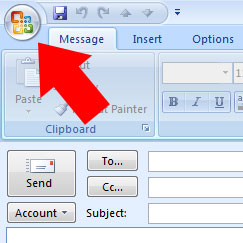
    3. Click the Outlook button
      Click the Outlook button
    4. When the save dialogue box appears, save the message on your computer.
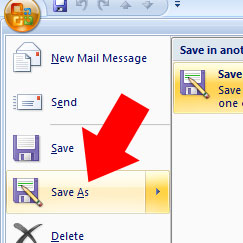
    5. Choose 'save as' from the drop down menu
      Choose 'save as' from the drop down menu

    Now, when you want to use your template, just double click the saved email and you can use as many times as you like

  • Instructions about how to back up and export webmail emails from Horde


    Instructions about how to back up and export webmail emails from Horde
    Instructions about how to back up and export webmail emails from Horde

    Instructions about how to back up and export webmail emails from Horde

    If you’re using Horde to manage your webmail emails and want to back them up, you may have realised that it seems to be not as easy to do as you’d hope without going through and forwarding email groups individually

    Fortunately, it is actually pretty simple if you know how to do it and here’s how:

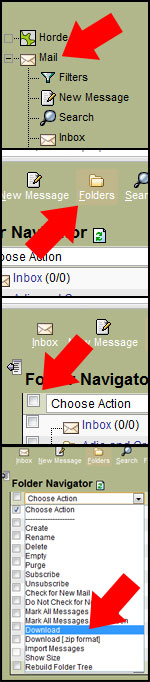
    1. Click on ‘mail’ on the left menu
    2. Click on ‘folders’ from the top menu
    3. Tick the boxes of the folders you’d like to export
    4. From the drop-down box ‘actions’ select ‘download’

    This will download your emails in an ‘MBOX’ container file format

    Alternatively, if you want to forward your messages in groups; view the emails you’d like to forward, tick the box next to them and then click on ‘forward’ which should be just above the top email

    Horde
    Horde
  • Convert text to lower-case, upper-case or capitalised the easy way!

    CAPS-LOCK
    CAPS-LOCK = SHOUTING

    This tutorial is specifically for Microsoft Word and Outlook, however, as with many keyboard shortcuts, they’ll often be supported by many other applications

    Ever accidentally hit the CAPS LOCK button and written a whole paragraph in capitals? Or how about got one of those shouty emails all in caps that are difficult to read?

    Good news – there is an ultra-simple way to swap between capitals and lowercase! It’ll even capitalise the starts of paragraphs for you!

    Simply, highlight the offending text, hold down ‘SHIFT’ and press ‘F3’. That’s it!

    In Outlook, you’ll have to click reply or forward first to make the text area editable but it still works!

    Very handy!