Blog

  • Derbyshire virtual tours for hotels, holiday homes & tourism

    The competition in the UK holiday accommodation industry and tourism is growing rapidly. In recent years, with the rise of new competitors to independent accommodation such as Airbnb, the growth of the hotel trade has been somewhat restricted and an increasing number of people are opting for alternative accommodation options. This in mind, there has never been a better time to revolutionise the way in which you advertise your space to future customers – 360VirtualView, as the leading provider of Derbyshire virtual tours for hotels, bed & breakfasts and independent holiday accommodation, may be able to help.

    Studies of the UK real-estate industry have shown that property listings with a virtual tour included have over 40% more views than their equivalents that just used standard photos. The tourism industry, particularly when it comes to accommodation, is very similar in nature to selling real-estate to a consumer base. Simplistically, more views mean more exposure, more exposure leads to more engagement and more engagement creates customers and trade. This is evidence suggesting it is imperative for a hotel that wants high rates of online custom to invest in a 360-degree virtual tour for their space – It has the potential to completely transform your business.

    Easy Interaction for All

    Working on Derbyshire virtual tours since 2005, we realise the importance of accessibility for all ages. The simplistic nature of our tours mean that they require no extra technical skills than simply browsing the internet or navigating google maps. This means that the experience of a fully immersive, 360 degree virtual tour of your space can be available to everyone, young and old,  anywhere in the world.

    Our content is flexible

    That’s right. With little effort, the content we produce can be adapted for use on social media platforms. That means Instagram, Twitter, Facebook, Youtube, Google Maps and many more social platforms could all host a virtual tour on your profile for FREE advertising. The eye-catching, unique viewing experience is sure to draw attention to your business’ social feed.

    Local Provider

    We have been lucky enough to work on virtual tours for hotels and restaurants all across the Derbyshire and Peak district area for over 15 years. Within this time, we have learned what works well in the hospitality industry and what does not, so we’re confident we can meet your needs. 

    Give us a call on 0114 383 0711 and our friendly service team will assist you, or alternatively email us at info@360virtualview.co.uk for prices.

  • Here are 5 reasons to buy your next Olfa Cutters online

    The internet has revolutionised commerce, even more so through the Pandemic. More and more people prefer online shopping as it offers many advantages over the old-fashioned bricks-and-mortar shopping. Here are a few reasons why you should buy online the next time you run out of blades for your Olfa Cutters or need a Swann Morton supplier!

    Buy Olfa Cutters online

    Convenience

    Firstly, it’s simply just the easiest way to shop. No queues, no travel, and it’s certainly much faster to buy replacement Knives and blades online that it is to go to your local trade shop. You’ll also likely have a much better selection of knives and blades to choose from. Bricks and mortar shops can only have so much in stock due to space constraints, however, your online retailers don’t necessarily have that problem. This means you’re more likely to fine every knife and cutter as well as their replacement blades all in one place.

    Lower prices

    Whether you’re looking for a new Swann Morton supplier or maybe some shiny new Olfa Cutters, there’s a very good chance that you will find better deals online. After all, online knife & blade shops will often have lower overheads as opposed to having all the overheads associated with physical premises. Increasingly, there is a rise in popularity of ‘only online’ offers which means you are able to take advantage of large savings.

    Smaller chance of impulse purchases!?

    We all know what it’s like – you pop into the shop with the intention of picking up one thing like a pack of replacement blades and you end up also walking out with a 32ft ladder just because it was on offer. Thanks to shopping online, you can search exactly for what you need (like a pair of Olfa Cutters) and purchase it, without spending extra money on things that you don’t really want.

    Time is money

    And money is time… so why waste yours standing in queues, stuck traffic and waiting at the tills. And even at the moment you could be even risking your health whilst you’re at it! Shopping online for replacement blades or finding a new Swann Morton supplier online is easier than ever, with the whole process from finding a product to placing an order often taking just a few minutes.

    See the range of online knives and blades

    Use the search functionality on this site to see the full range of knives, blades

  • Changing your WordPress site language to English (UK)

    In the older versions of WordPress the language files were kept locally within the WordPress installation files (wp-content/languages) however, in WordPress versions from about 4 onwards they’ve changed how the site language is managed. As always, before you do anything, back everything up, have a plan for restoring your site if you make a cock-up, don’t attempt this if you’re not 100% sure you are able to do it successfully. In other words, messing about with your site files if you don’t really know what you’re doing is very risky and you can easily break your site!

    Check your WordPress version

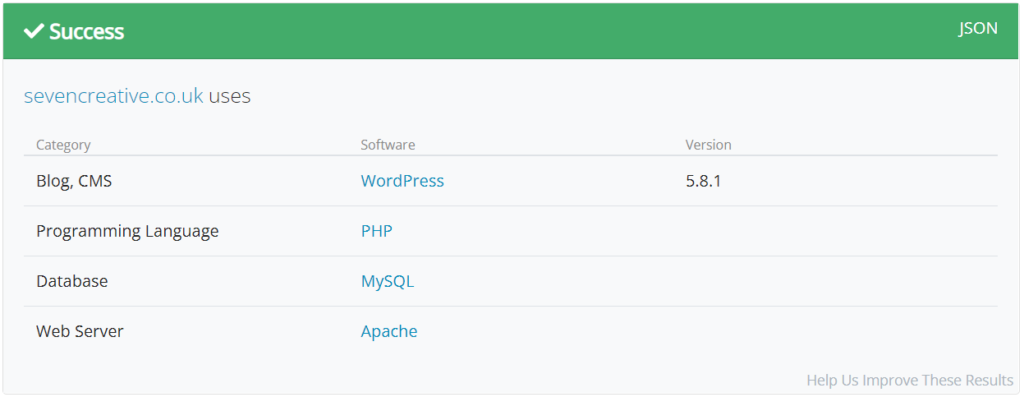
    Firstly you need to check your WordPress version. The simplest way to do this by logging into your website dashboard and checking the updates page, or use a site like WhatCMS (https://whatcms.org) to find out. WordPress versions prior to 4.x click here to see the old tutorial to change your site language.

    Note: It may be possible to change your site language by creating a language file and adding the language files as in the previous tutorial but I’ve not tried this yet. If you try it and it does or doesn’t work, please let me know

    Checking your WordPress site language
    Firstly you need to check your WordPress version.

    WordPress versions 4.x onwards can use the following tutorial to change their site language.

    1. Log into your site via FTP or file manager
    2. Open your wp_config.php file for editing (this is in the main site directory where you’ll also find files like ‘index.php’ and ‘wp-login.php’ along with folders called ‘wp-admin’ and ‘wp-content’
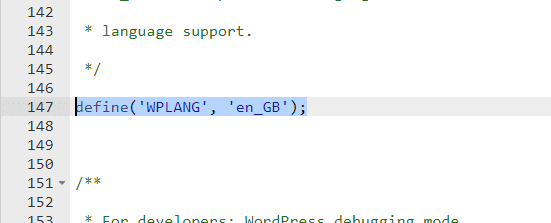
    3. Within the wp_config.php file you need to find the line of code ‘define(‘WPLANG’, ”);’ – the most recent site I changed this was on line 147. Try using CTRL+F to find the word ‘WPLANG’
    4. Find your WordPress Locale Code for the language you want. For example, UK english the locale code is ‘en_GB’ or for Belgian French the locale code is ‘fr_BE’. There is a full list of the WordPress Locale Codes at the bottom of this post (try using CTRL+F to find the one you need)
    5. Add the WordPress Locale Code to the line of code from step 3 within the empty apostrophes, for example, to change your site language to UK English, it would go from looking like this define(‘WPLANG’, ”); to looking like this define(‘WPLANG’, ‘en_GB’); (see illustration below)
    6. Save the updated wp_config.php file
    7. Log into your site dashboard and go to ‘Settings > General > Site Language’ where you will now find your new language in the drop-down box. Change this and save. Done
    Within the wp_config.php file you need to find the line of code 'define('WPLANG', '');'
    Within the wp_config.php file you need to find the line of code ‘define(‘WPLANG’, ”);’

    WordPress Locale Codes – full list

    You may want to use CTRL+F to find the language you’re looking for

    Language Name Language Code WordPress Locale Code
    Afrikaans af af
    Akan ak ak
    Albanian sq sq
    Amharic am am
    Arabic ar ar
    Armenian hy hy
    Aromanian rup rup_MK
    Assamese as as
    Azerbaijani az az
    Azerbaijani (Turkey) az-tr az_TR
    Bashkir ba ba
    Basque eu eu
    Belarusian bel bel
    Bengali bn bn_BD
    Bosnian bs bs_BA
    Bulgarian bg bg_BG
    Burmese mya my_MM
    Catalan ca ca
    Catalan (Balear) bal bal
    Chinese (China) zh-cn zh_CN
    Chinese (Hong Kong) zh-hk zh_HK
    Chinese (Taiwan) zh-tw zh_TW
    Corsican co co
    Croatian hr hr
    Czech cs cs_CZ
    Danish da da_DK
    Dhivehi dv dv
    Dutch nl nl_NL
    Dutch (Belgium) nl-be nl_BE
    English en en_US
    English (Australia) en-au en_AU
    English (Canada) en-ca en_CA
    English (UK) en-gb en_GB
    Esperanto eo eo
    Estonian et et
    Faroese fo fo
    Finnish fi fi
    French (Belgium) fr-be fr_BE
    French (France) fr fr_FR
    Frisian fy fy
    Fulah fuc fuc
    Galician gl gl_ES
    Georgian ka ka_GE
    German de de_DE
    German (Switzerland) de-ch de_CH
    Greek el el
    Guaraní gn gn
    Gujarati gu gu_IN
    Hawaiian haw haw_US
    Hazaragi haz haz
    Hebrew he he_IL
    Hindi hi hi_IN
    Hungarian hu hu_HU
    Icelandic is is_IS
    Ido ido ido
    Indonesian id id_ID
    Irish ga ga
    Italian it it_IT
    Japanese ja ja
    Javanese jv jv_ID
    Kannada kn kn
    Kazakh kk kk
    Khmer km km
    Kinyarwanda kin kin
    Kirghiz ky ky_KY
    Korean ko ko_KR
    Kurdish (Sorani) ckb ckb
    Lao lo lo
    Latvian lv lv
    Limburgish li li
    Lingala lin lin
    Lithuanian lt lt_LT
    Luxembourgish lb lb_LU
    Macedonian mk mk_MK
    Malagasy mg mg_MG
    Malay ms ms_MY
    Malayalam ml ml_IN
    Marathi mr mr
    Mingrelian xmf xmf
    Mongolian mn mn
    Montenegrin me me_ME
    Nepali ne ne_NP
    Norwegian (Bokmål) nb nb_NO
    Norwegian (Nynorsk) nn nn_NO
    Oriya ory ory
    Ossetic os os
    Pashto ps ps
    Persian fa fa_IR
    Persian (Afghanistan) fa-af fa_AF
    Polish pl pl_PL
    Portuguese (Brazil) pt-br pt_BR
    Portuguese (Portugal) pt pt_PT
    Punjabi pa pa_IN
    Rohingya rhg rhg
    Romanian ro ro_RO
    Russian ru ru_RU
    Russian (Ukraine) ru-ua ru_UA
    Rusyn rue rue
    Sakha sah sah
    Sanskrit sa-in sa_IN
    Sardinian srd srd
    Scottish Gaelic gd gd
    Serbian sr sr_RS
    Sindhi sd sd_PK
    Sinhala si si_LK
    Slovak sk sk_SK
    Slovenian sl sl_SI
    Somali so so_SO
    South Azerbaijani azb azb
    Spanish (Argentina) es-ar es_AR
    Spanish (Chile) es-cl es_CL
    Spanish (Colombia) es-co es_CO
    Spanish (Mexico) es-mx es_MX
    Spanish (Peru) es-pe es_PE
    Spanish (Puerto Rico) es-pr es_PR
    Spanish (Spain) es es_ES
    Spanish (Venezuela) es-ve es_VE
    Sundanese su su_ID
    Swahili sw sw
    Swedish sv sv_SE
    Swiss German gsw gsw
    Tagalog tl tl
    Tajik tg tg
    Tamazight (Central Atlas) tzm tzm
    Tamil ta ta_IN
    Tamil (Sri Lanka) ta-lk ta_LK
    Tatar tt tt_RU
    Telugu te te
    Thai th th
    Tibetan bo bo
    Tigrinya tir tir
    Turkish tr tr_TR
    Turkmen tuk tuk
    Uighur ug ug_CN
    Ukrainian uk uk
    Urdu ur ur
    Uzbek uz uz_UZ
    Vietnamese vi vi
    Walloon wa wa
    Welsh cy cy
    Yoruba yor yor
  • Microsoft Exchange – how to change password reset policy

    Microsoft Exchange – how to change password reset policy

    If you’re using Microsoft Exchange for your email, there’s a good chance you’re on the default password policy which may mean all users may need to update their passwords periodically. Alternatively, as the email administrator, you may want to require all users update their password to a new regularly. Whatever the reason, you can change the Microsoft Exchange password policy quickly and easily via the Exchange admin dashboard.

    1. Log into the Microsoft Exchange Admin Centre with a ‘global admin’ account
      1. https://admin.microsoft.com/
    2. Go to the ‘Security & Privacy’ tab (If you aren’t a global admin, you won’t see the Security and privacy option.)
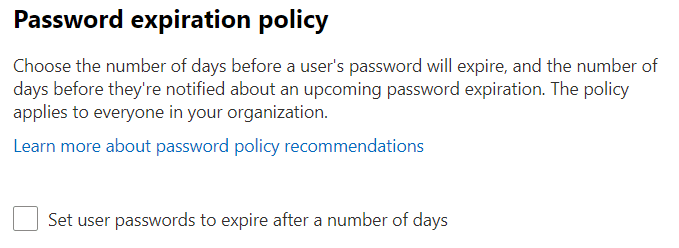
    3. You should now see the ‘Password expiration policy’

    Here you can change the Exchange user password reset requirements

    Microsoft Exchange - how to change password reset policy

    How to manually reset a Microsoft Exchange password

    If you need to manually reset a password, you can do this easily via the Microsoft Exchange Admin Centre

    1. Log into the Microsoft Exchange Admin Centre with a ‘global admin’ account
      1. https://admin.microsoft.com/
    2. Go to the Users optoin then Active Users
    3. Click the account you’d like to modify from the list of users

    Individual users should also be able to log in directly to update their own passwords using the link above

  • How to change your IP address using the Opera VPN

    If your IP address becomes blocked by server spam services and you’re no longer able to access some websites, you can temporarily change your IP using the Opera VPN. Your IP address is a series of numbers which are assigned to your internet connection and can be used to block access from certain computers. However, if you get blocked by accident, while the error is being fixed, you can usually use the following technique to circumvent the block.

    1. Download and install the Opera Browser here: https://www.opera.com/download
    2. Start the Opera browser and open an incognito browser window. The keyboard shortcut to do this is CTRL+SHIFT+N or click the ‘O’ in the top-left corner then select ‘New private window’
    3. In the new private window click the VPN option in the address bar at the top to the left of the magnifying glass icon
    4. You can now re-try accessing the website you had trouble accessing before

    Please note that Google may block VPN access using a CAPTCHA but the other search engines should still work such as Bing.com or DuckDuckGo.com

    https://vimeo.com/585366558/ba385603b4
  • Unable to send email to Hotmail or Outlook addresses – how to remove yourself from the Hotmail block-list

    Unable to send email to Hotmail or Outlook addresses – how to remove yourself from the Hotmail block-list

    If you find yourself suddenly unable to send email to Hotmail or Outlook.com email addresses from your website or work email address, you may have ended up on the Hotmail or Microsoft spam block-list. This can happen through no fault of your own as spammers will disguise the email they send as coming from someone else’s domain name (spoofing). Nevertheless, you’re the one who ends up paying the consequences. By the time the spammer has moved on to their next next victim, you find yourself unable to send emails to addresses you may have emailed a dozen times before with no problem – so what now? Follow this quick guide to submit a Microsoft block-list removal request and unblock your email from the Hotmail servers.

    Step 1 – find the error message in the bounced email

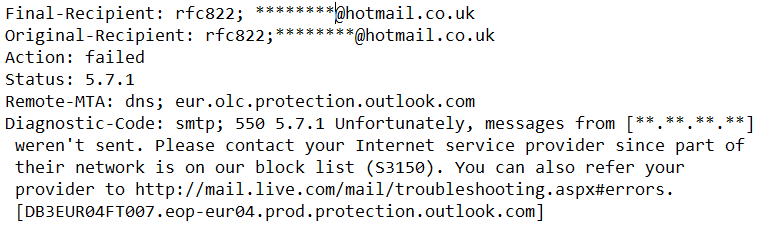
    The following is an example of the error message from an email bounced back from Hotmail. The sender’s domain is perfectly reputable – is many years old and has never sent spam – but they found themselves on the Microsoft email block list:

    host eur.olc.protection.outlook.com[104.47.12.33]
        said: 550 5.7.1 Unfortunately, messages from [**.**.**.**] weren't sent.
        Please contact your Internet service provider since part of their network
        is on our block list (S3150). You can also refer your provider to
        http://mail.live.com/mail/troubleshooting.aspx#errors.
        [DB3EUR04FT007.eop-eur04.prod.protection.outlook.com] (in reply to MAIL
        FROM command)
    

    Step 2 – fill in the Microsoft email blacklist removal request form

    Click the following button to open the Microsoft email blacklist removal form (will open in a new tab):

    Step 3- fill in the required fields

    The email blacklist removal form will ask you for several different things. Most are intuitive, others not so. Here are a few pointers:

    • Issue title – you could write something along the lines of ’email block list removal request’
    • Contact name, contact email address, time-zone, how you describe yourself – your details in these fields
    • which domain are you sending to? – This is the domain name part of the email your trying to send to e.g. Hotmail.com or Outlook.com
    • Domain your sending from & URL of your website – this is the domain name part of the email address that is blocked e.g. if your email address is yourname@yourdomain.com, in this field write yourdomain.com
    • Outbound IP range – here you just need the IP address you can find in the bounced email error message. It is a group of 4 numbers separated by full-stops. In the error message you see above I have changed the IP address to ‘**.**.**.**’ but your IP would look something like 23.122.54.233. Just one IP in this box is enough (you won’t normally need to input a whole IP range)
    • Server dedicated or shared? – if you don’t know, just put ‘shared’
    • Paste error message – copy and paste in the error message from your email which will look similar to the example above

    Step 4 – submit the form and wait

    You may get an email acknowledgement. In any case, it may take a couple of days to remove you from the block list

    For reference – the Hotmail blocklist error codes

    SMTP Error CodeExplanation
    421 RP-001The mail server IP connecting to Outlook.com server has exceeded the rate limit allowed. Reason for rate limitation is related to IP/domain reputation. If you are not an email/network admin please contact your Email/Internet Service Provider for help.
    421 RP-002The mail server IP connecting to Outlook.com server has exceeded the rate limit allowed on this connection. Reason for rate limitation is related to IP/domain reputation. If you are not an email/network admin please contact your Email/Internet Service Provider for help.
    421 RP-003The mail server IP connecting to Outlook.com server has exceeded the connection limit allowed. Reason for limitation is related to IP/domain reputation. If you are not an email/network admin please contact your Email/Internet Service Provider for help.
    550 SC-001Mail rejected by Outlook.com for policy reasons. Reasons for rejection may be related to content with spam-like characteristics or IP/domain reputation. If you are not an email/network admin please contact your Email/Internet Service Provider for help.
    550 SC-002Mail rejected by Outlook.com for policy reasons. The mail server IP connecting to Outlook.com has exhibited namespace mining behavior. If you are not an email/network admin please contact your Email/Internet Service Provider for help.
    550 SC-003Mail rejected by Outlook.com for policy reasons. Your IP address appears to be an open proxy/relay. If you are not an email/network admin please contact your Email/Internet Service Provider for help.
    550 SC-004Mail rejected by Outlook.com for policy reasons. A block has been placed against your IP address because we have received complaints concerning mail coming from that IP address. We recommend enrolling in our Junk Email Reporting Program (JMRP), a free program intended to help senders remove unwanted recipients from their email list. If you are not an email/network admin please contact your Email/Internet Service Provider for help.
    550 DY-001Mail rejected by Outlook.com for policy reasons. We generally do not accept email from dynamic IP’s as they are not typically used to deliver unauthenticated SMTP email to an Internet mail server. If you are not an email/network admin please contact your Email/Internet Service Provider for help. http://www.spamhaus.org maintains lists of dynamic and residential IP addresses.
    550 DY-002Mail rejected by Outlook.com for policy reasons. The likely cause is a compromised or virus infected server/personal computer. If you are not an email/network admin please contact your Email/Internet Service Provider for help.
    550 OU-001Mail rejected by Outlook.com for policy reasons. If you are not an email/network admin please contact your Email/Internet Service Provider for help. For more information about this block and to request removal please go to: http://www.spamhaus.org.
    550 OU-002Mail rejected by Outlook.com for policy reasons. Reasons for rejection may be related to content with spam-like characteristics or IP/domain reputation. If you are not an email/network admin please contact your Email/Internet Service Provider for help.
  • Protected: Email settings – POP, IMAP & ports

    This content is password-protected. To view it, please enter the password below.

  • How to add or remove Facebook Page administrators – edit page roles

    How to add or remove Facebook Page administrators – edit page roles

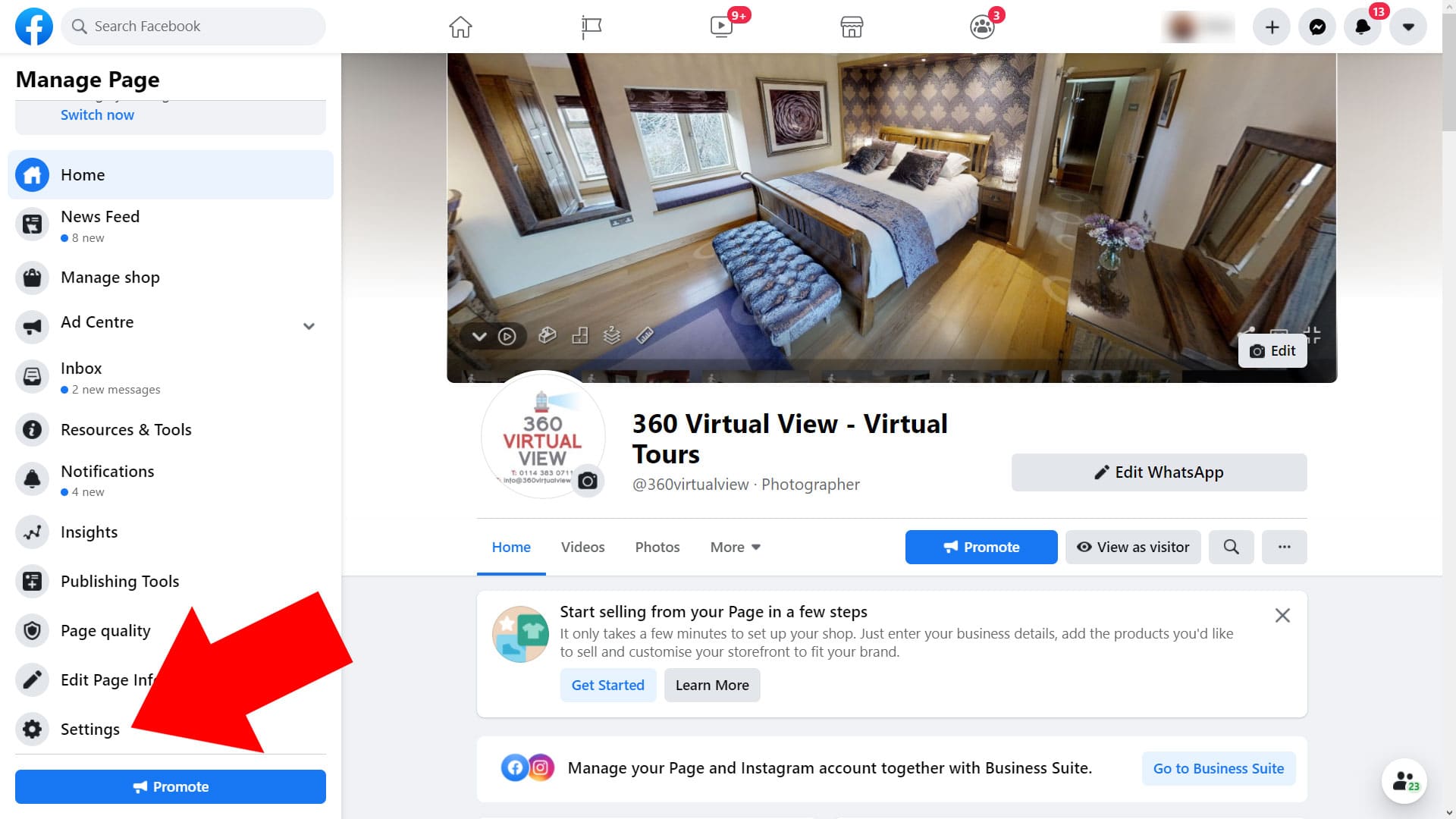
    This relates to the new Facebook Page layout (November 2020) and has to be done by a current Facebook Page administrator

    1. Log into Facebook and view the business page homepage
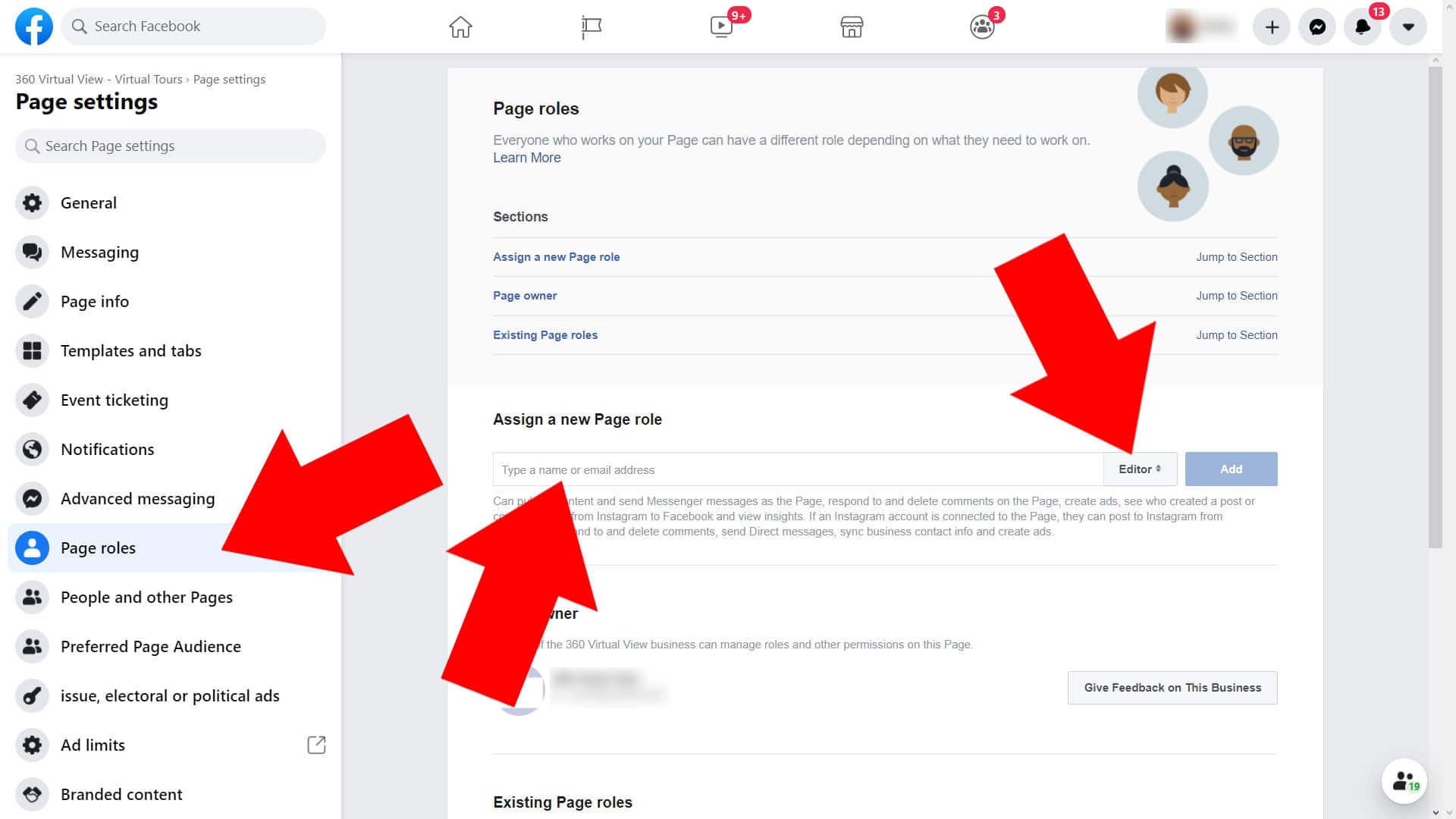
    2. From the ‘manage page’ options in the left column, select ‘settings’
    3. From ‘settings’ go to ‘page roles’. Here you can assign a new page editor, moderator, administrator, etc. A page administrator can also remove current page administrators too
    4. Adding a new page role also requires that whoever you’ve added has a Facebook account and also accepts the invitation (it will appear in their notifications.

    Please note that if you give someone administrator rights for your page they will have the same rights as you including the ability to remove you as an administrator

  • Protected: Apple email problem – alternative solution

    This content is password-protected. To view it, please enter the password below.

  • Protected: Adding your Seven Creative email address to Hotmail

    This content is password-protected. To view it, please enter the password below.