Blog

  • How to get Contact Form 7 check-boxes and buttons on new lines

    How to get Contact Form 7 check-boxes and buttons on new lines

    If you’re using Contact Form 7 on your WordPress site for the contact form, you may have come across an annoying little problem when you add checkboxes or radio buttons and they all appear one after another on one line. Unfortunately there isn’t currently an easy or quick fix for this as the best solution I’ve found is to add a line of CSS within the site. Before you start editing your theme files directly, look for an option in your WordPress installation that allows you to add ‘additional CSS’.

    Most importantly, before you start, make sure you have a full backup of your site. Seven Creative website hosting customers get in touch as you should have our ongoing 6-hourly, 7-day rolling backups to keep your site secure and protected.

    Using the ‘additional CSS’ option

    If you have the option to add additional CSS to your theme, add the following and update:

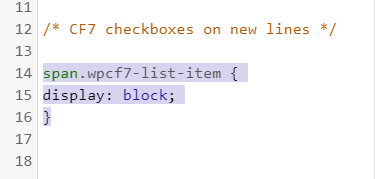
    span.wpcf7-list-item {
    display: block;
    }

    Update your sites CSS directly

    I wouldn’t recommend updating the CSS within the Contact Form 7 plugin directly as it may be overwritten the next time the plugin updates. This also applies to your website parent theme. If you’re using a child theme, you can update the CSS in the theme file, normally found here:

    > wp-content > themes > *your child theme* > styles.css

    And add the following:

    span.wpcf7-list-item {
    display: block;
    }

    Include the CSS in the header of the site

    You can also add the CSS code directly into the header of the site – one way is by using a simple plugin like ‘Insert headers and Footers‘ by WPBeginner. Add the following:

    <style type="text/css">
    span.wpcf7-list-item {
    display: block;
    }
    </style>

    Need help?

    We provide the full range of WordPress website support and WordPress website development services. Get in touch for more information on 0114 383 0711 or visit our contact section of the site

  • Need to change your WordPress login password in the database? Here’s how

    Sometimes you just can’t reset your WordPress password. Maybe you don’t have access to the associated email address or maybe the site isn’t able to relay reminder emails. Whatever the reason, it’s possible to change manage WordPress users and your username and password directly in the database.

    However, before you start, firstly, make sure you’ve got a full backup of the database and know how to restore it as mistakes can kill your site! Secondly, make sure you’re confident you know what you’re doing. Any problems or worries, give us a call and we’re happy to help. Anyway, on with the tutorial.

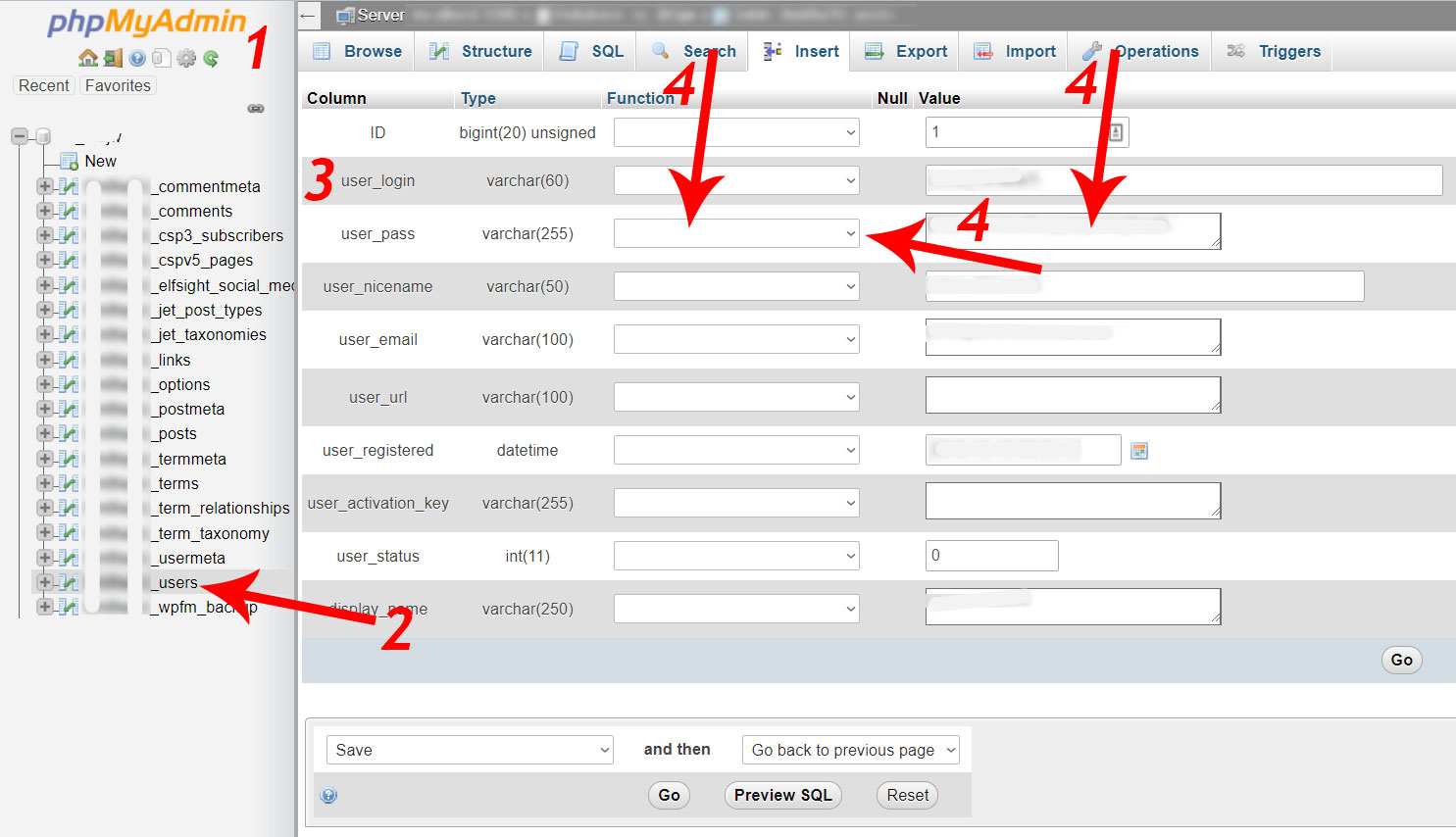
    1. Access your database

    The most common way to access and edit your database is using PHPMyAdmin. This server-based software gives you a user-friendly interface to view and edit the data within your site. You’ll need the PHPMyAdmin address, the database name, your username and your password. The latter three items can be found in your wp-config.php file in the site root directory. The former will probably need to be accessed via the website hosting dashboard.

    2. Find the ‘users’ table

    This table will usually have a prefix ending in ‘_users’. For example, if the prefix is ‘mysite’, the table you’re looking for will be called ‘mysite_users’. Sounds complicated but it isn’t – you’ll see when you view the database.

     3. Locate the user you want to update

    Within the ‘users table you may find 1 or more records depending on how may users your WordPress site has. Next to the one you want edit, click ‘edit’. This is also a good opportunity to clear out old users you no longer need.

    4. Edit the ‘user_pass’ line

    You should now be viewing the user for which you want to update the password. On the line ‘user_pass’, choose ‘MD5’ from the function drop-down options and add the new password in the following field before clicking ‘go’ to save the new info.

    5. Done

    You should now be able to log into the site using the email address or username and the new password.


  • Microsoft Exchange vs POP email vs free email

    For virtually all of us, email is now a fact of life, however, not all email services were created equal. Within my career I’ve seen the first wide-scale early adoption use of business email back in the 90’s, all the way to smart phone with voice assistant here in the 20’s so I’ve certainly seen some changes in how email is used in my time!

    In the ‘old days’ when we just had a computer at work and one email client, we simply used POP and SMTP for our email – it was reliable and there was never any problem with emails syncing across multiple devices because we simply didn’t have multiple devices. Many companies had their own server running Microsoft Exchange but they were very difficult to configure and expensive to maintain – you needed to be very technical to manage one so probably needed an IT department as a company. Before long, people also wanted a personal email address they could use to send jokes and funny pictures so services like Yahoo Mail started to become widely adopted by people. We’d access this on our new home computers which began dropping in price and Windows ’98 was easy enough to use for basic functionality like browsing the internet.

    Roll on to 2020 and everyone now has the option to use Microsoft Exchange for their email. It’s reliable, slick, professional looking, cloud-based, and surprisingly cheap! However, best of all, you don’t need an MA in Computer Science anymore to use it. So why isn’t everyone using Microsoft Exchange?

    I’m still astonished to see vans driving about with BTINTERNET email addresses on the side or when you get an email from a seemingly successful company from a HOTMAIL address. I was recently asked to help several businesses sort out their email services when FREESERVE closed their email services down with very little notice and now companies like VIRGIN MEDIA and SKY have been in the news for their unfair charges relating to people wanting to keep their email address when they’re no longer a customer.

    My advice to all of these people – businesses and individuals – is to get control of your own email. Email addresses are no longer disposable; we might keep our email address throughout our whole lives. So why take the risk of leaving something so important in the hands of a corporation who may change their business model and decide email customers are no longer important – and this has happened recently!

    Instead of simply recommending how you should manage your email, I’ll tell you my email setup – you can’t get a better recommendation than that!  I use Microsoft Exchange. I use 4 different devices – Windows laptop, 2 x iPads, Android phone – and all 12 years of emails since I started using this email address are accessible on any of them instantly (sent, received, saved and archived). I could be either at home, in the office, sitting on a beach in La Palma, or at 3000 metres at the top of a mountain in the snow and I can just as easily read and reply to any email (I’ve actually done this). If my house is flooded and I lose all my devices, I can’t lose any emails. I can pop next door to borrow their computer to access my web version of Outlook whilst I’m waiting for replacements and everything is there. Honestly, moving from POP, IMAP and SMTP email is one of the best decisions I’ve made from a business perspective.

    Get in control of your email, get everything secure, and make your life easier. Call me for more info on 0114 383 0711

    comparison of the different main email types

    Free (such as Hotmail) POP or IMAP Microsoft Exchange
    Synchronises all your saved, sent and received emails across all your different devices instantly
    Synchronises your calendar across all devices
    Compatible with all mobile phones, laptops and computers
    Available as webmail
    Reliable
    Advert-free
    You own it
    All emails backed up in the cloud
    Use your own domain
    Looks professional
  • What is an ’email alias’?

    What is an email alias?

    An email address is made up of a recipient (e.g. your name) and a domain (e.g. your domain name) together to create a unique address (e.g. you@yourdomain.com) which are received in its own unique mailbox

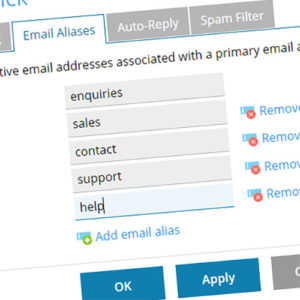
    An email ‘alias’ is where you create a different recipient, but instead of the new address having its own mailbox, the emails sent to this address are simply automatically received by a different email address of your choosing.

    An Example

    For example, if your email address is ‘bob@yoursite.com’ you could also setup ‘enquiries@yoursite.com’ as an email alias meaning any emails sent to ‘enquiries@yoursite.com’ would simply arrive in the inbox for ‘bob@yoursite.com’.

    Why use an email alias?

    You can have as many email aliases per email address as you like and they are normally used for the following reasons:

    • merging email addresses – if you have an old email address that is no longer used (for example someone has left your company) but that address may still receive important emails, you can add this address as an alias to an existing email address meaning any emails sent to the old address will still be received and diverted to the existing address you specify
    • reducing the number of mailboxes – no need to have a unique mailbox for ‘info@…’, ‘enquiries@…’, ‘sales@…’ etc. – create one email address and add all the other variations as email aliases
    • to hide your email address – for example if you need to include an email address in  an advert or on a website, you may not want to include your own email address, but nevertheless you’d still like to include an email address. You can therefore instead use an email alias meaning you’re not having to display your own email address

    Limitations of an email alias

    Firstly, having one or more email alias can be very handy, however, you can’t ‘reply’ from an email alias

    Secondly, although creating or removing email aliases can be very quick to do, once it’s been removed, any emails sent to that address will no longer be received. This is important to consider if you’ve used the email alias for something important such as on your linkedIn profile where it may be the only email address for you that potential contacts may have

    Thirdly, an alias can only be used with an address on the same domain. In other words, if your email address is ‘bob@yourdomain.com’ and you’d like to add ‘jim@adifferentdomain.com’, it’ll only work if you have also added ‘adifferentdomain.com’ as a domain alias (as opposed to an email alias). In this example you’d need to use email forwarding instead.

    What do I do with an alias when it’s no longer needed?

    When an email alias has been deleted, any emails sent to that address still need to be handled one way or another. The options are to:

    • ‘blackhole’ the emails – this means they’re just simply deleted as they arrive without any fuss. This is the best option for aliases that are not important and not likely to receive important emails
    • ‘reject’ the emails – this sends a reply email to the sender saying the email was not delivered as no recipient was specified. I normally recommend this option as it means that emails sent from legitimate senders will provide them with a notification that their email was not not delivered meaning they can try to get in touch a different way
    • receive the emails in an ‘un-monitored’ inbox – this will receive the emails as normal in an email inbox. Then, if you like, you can log in and check the emails periodically to make sure nothing important has been missed. This is sometimes used as a transition before finally deleting the old email recipient.
    • Create a standard email account for the alias – maybe the required alias was just temporary and you need the account again or maybe it was so successful you’ve now taken on a new member of staff. Whatever the reason there’s nothing stopping you from simply turning the email alias into a standard email account instead

    How do I set up an email alias?

    An email alias needs to be setup and configured by your hosting or email administrator. As always, we’re happy to help and, if you’re not happy with your current email setup or administrator, we’re always here to help!

    If you need any help or advice setting up or configuring your email services, get in touch on 0114 383 0711 

  • Extend the registration period of your domain name for better SEO

    SEO boost - extend the renewal period of your domain name
    For an SEO boost – extend the renewal period of your domain name

    The website domain name is often overlooked in SEO terms as people focus on inbound links and optimised web copy, however, your domain name – or in this instance the information relating to it – is one of the important criteria used by Google when evaluating your website.

    We all know that new domain registrations are likely to be sand-boxed as Google prefers to err on the side of caution when it comes to a potential pop-up website, however, once your site is established and your domain name is at least a good few months old, Google will begin its ongoing assessment of your website including the information relating to the domain and use it to decide how important your site it.

    Google really ‘likes’ older domain names with long registration periods to go. You can now commonly register the most popular domain names for up-to 10 years. Not only will you save money and not have the hassle of trying to remember when it’s due for renewal, you’ll have the extra SEO benefit of indexing better within the search results!

    If you’re still unsure about why this is important, think about it like this. If I were of a nefarious persuasion with wicked SEO skills, I could very easily set up an eCommerce website, optimise it to get it to the top of the search results and start taking money off people. This is very easy to do and there were, for example, some very high profile cases of this happening, for example, during the most recent Wimbledon tennis tournament.

    This type of site has to be quick – people are going to start complaining pretty quickly when they don’t get what they’ve bought so the site isn’t going to be up for that long when the authorities find out. Therefore, if Google sees a new website with a recently registered domain name and a short registration period, alarm bells will go off! This is why a pre-emptive suppression within the search engine results is the simplest solution to this potential problem. The legitimate sites will register their domains for longer and they’ll still be up and running in a few months. It’s a bit like a website probationary period.

    In summary, if you want your site to be taken seriously by Google and indexed properly, extend the registration period of your domain name.

    If you need help with your domain renewal period, or anything else relating to SEO or search engine optimisation, call us here at Seven Creative on 0114 235 2002 or see the other contact options 

  • How to reactivate the ‘edit theme’ option in WordPress

    If the ‘theme edit’ option has disappeared from your WordPress dashboard and you’re unable to edit themes from the website back-end, try the following tutorial as it’s a common problem with (what is usually) a simple, quick fix. Being able to edit your site themes is useful, however, it can be a big security vulnerability which is why there are many plugins designed to remove the ability to edit themes from the dashboard. When the ‘theme edit’ functionality is disabled, the changes are often made permanent regardless of whether you’ve uninstalled or deactivated the original plugin that made these changes.

    In order to complete this tutorial, you’ll need:

    • FTP access to your site
    • Admin access to your WordPress site’s dashboard

    How to reactivate the ‘edit theme’ option in WordPress

    1. Firstly, a bit of housekeeping. If you’re not sure what your doing, remember you can easily damage your site by editing the theme files. If you’re not sure, should you get professional help to do this? Also, make sure you have a full backup of your site just in case. Before you edit any files directly, have you checked the plugin settings to allow theme editing? For example, iThemes Security you need to go to Security > Settings > WordPress Tweaks and enable ‘file editor’ then save the changes.
    2. If the above didn’t work and you still can’t edit your WordPress theme, deactivate any of the plugins via the WordPress dashboard that you think may have disabled access to the ‘theme edit’ function such as WordFence or iThemes Security.
    3. Access your site via FTP
    4. Open the ‘wp-config.php’ file to edit (you may need to download it depending on your FTP client)
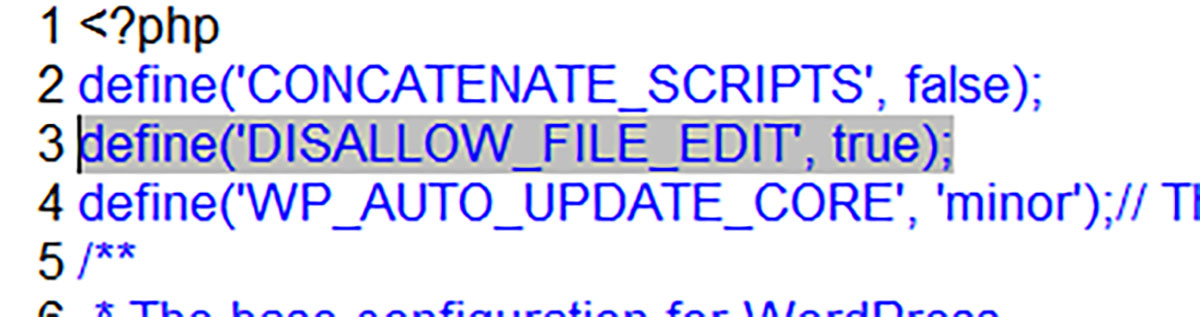
    5. Find the line of code in the file ‘define(‘DISALLOW_FILE_EDIT’, false);’. Here you can switch WordPress dashboard theme editing on or off by editing this line to:
      1. define(‘DISALLOW_FILE_EDIT’, true);
      2. define(‘DISALLOW_FILE_EDIT’, false);
    6. Save the updated file on the server again. Remember that there is a potential security risk allowing the theme to be edited via the dashboard as anyone with an admin login can do this. To disable theme editing again. Follow step 5

    Is your WordPress hosting secure?

    The reason why we prefer to host the WordPress sites we look after includes the following reasons:

    • We provide ongoing 6-hourly, 7-day server backups. This is besides any offline backups we store. If the worst does happen and your site is hacked or damaged, we can have it back up and running in minutes
    • Our server is secure and designed for WordPress hosting. We have a minimum 40-point server security protocol we apply to every site. This is on-top of the best-practice site management we provide too.
    • Our servers are premium and in the UK. This means that your site visitors benefit from fast display speeds; you can administer your site quickly and easily; and you also get the Google SEO benefit that comes along with the geo-location and fast display speeds
    • If you ever lose your login details, we’re able to quickly and easily access your database directly to reset them and restore access
    • Disgruntled employee attempting to sabotage your site? It’s a real and common potential problem! We can quickly and easily stop access to anyone unauthorised
    • Are you at risk of a DDOS attack? We’re able to block these automatically

    And many more reasons!

    Call us for more information about any of the points here or if you need some help editing your WordPress theme. We’re available on 0114 383 0711 or by email

  • Protected: Email port settings – Standard premium email

    This content is password-protected. To view it, please enter the password below.

  • Windows 7 support ends soon – what now?

    Windows 7 ESUIf you’re one of the many businesses who are still using Windows 7, you’re probably wondering what to do now support for Windows 7 is ending. What are the risks? Should you upgrade? What are your other options? However, it’s often just not that simple. This article discusses the main options you have

    Upgrade to Windows 10?

    Upgrading to Windows 10 may be the best option if you just want an easy life. In fact, if you can, this is most likely the best option for you. And there are also several versions of Windows 10 available. A business can, for example, go for the enterprise version (which gives you the most control over your system)  and there are also the Pro and Home versions too.

    And it may be free to upgrade provided you have a valid Windows 7 key – either during installation, or when Windows 10 is installed, you can navigate to ‘Settings’ > ‘Update & Security’ > ‘Activation’ and then enter a Windows 7 or 8.1 key here instead of a Windows 10 key – your PC will receive a digital entitlement.

    However, many companies still use older software that is not compatible with Windows 10 and, let’s be honest, quite a few old business computers don’t have the resources to even run Windows 10 so, if this option isn’t one for you, how about:

    Upgrade your hardware then upgrade to Windows 10?

    If your hardware is the weak link (as opposed to the software you use) that is stopping you upgrading to Windows 10, have you considered a hardware upgrade? Old-style mechanical hard disk drives (HDD) are slow and are often one of the main causes of a slow system. If this is the case, you could upgrade your HDD to a solid-state drive (SSD). Your HDD can be cloned onto a SSD and the price for everything can be as little as £150 including the new drive and the work involved in the transfer. Why not get your RAM upgraded too whilst you’re at it and your computer could be much, much faster over-night and now able to cope with the resource requirements of upgrading to Windows 10

    Change operating system (OS) completely?

    This is not an option I would probably recommend, however, it does need a mention. Changing your OS away from Windows completely to something like Linux or even changing to a MAC will, on the one hand will get you past the Windows 7 problem, however, unless you’ve got a very simple software setup, you’re very likely to end up with bigger problems and more work. Nevertheless, this is an option to consider.

    Disconnect!

    Simply unplugging your computer from the internet will certainly massively reduce the chances of having your machine compromised with malware (although you’d still need to keep an eye on using other devices such as USB drives) but is this really an option? For some, maybe. for me, nope. Internet is an integral part of using a computer for most activities so let’s move on swiftly.

    Just keep using your computer as normal and don’t worry?

    Out of all the options, this one is probably the most risky. Certainly in business in the UK we’re bound by legislation like the GDPR and by having what is effectively an insecure operating system, you’re potentially putting other people’s data as risk (such as email contacts). In fact, I can’t really come up with a scenario where this should be an option to consider unless it’s in conjunction with disconnecting from the internet as in the previous paragraph.

    Pay for ongoing security updates?

    Yes, you heard right. It turns out that Microsoft are simply stopping the ‘free’ support of the Windows 7 operating system. Details are still a bit sketchy but it looks like you can pay around $25 USD to $50 USD per computer (depending on which version of Windows 7 you have) for the first year of Extended Security Updates (ESU). It then looks like this amount doubles for the second year and doubles again for the third, however, this at least gives you a bit of breathing space… or is this just ‘kicking the can down the road’?

    Search for Windows 7 ESU for more information

    Conclusion

    If it were me in this situation, I’d firstly upgrade my HDD and an SSD and probably upgrade my RAM while I was at it. I’d then upgrade my OS to Windows 10, and, if I still needed Windows 7, for some reason such as for some legacy software, I’d simply run it on a virtual machine as and when it was required.



  • Improve Your Website’s Search Engine Rankings with These 5 SEO Tips

    As a business owner, you’re no doubt bombarded by spammy emails offering you SEO services from companies that promise they can get your website on the first page of Google. As a reputable Sheffield SEO company we know that no-one can really guarantee these results with 100% certainty. But there are certain things that you can do to help your website rank highly in the search engines, therefore increasing traffic to your website. 

    Search Engine Optimisation (SEO services) from Seven Creative
    Search Engine Optimisation (SEO services) from Seven Creative

    SEO is an abbreviation of search engine optimisation. This is the process of improving the ranking of a website in the results pages of a search engine for certain keywords in order to get more organic traffic to the site. When carried out properly, search engine optimisation provides valuable results that make a significant improvement to the amount of traffic your website receives. With that in mind, here are our top 5 SEO tips that will help to improve the ranking of your website in the search engines.

    1. Write Interesting, Engaging Content

    Interesting, engaging content has never been more important for SEO on your website or blog. Great content helps to establish you as a thought leader in your industry, and an expert in your field. Search engines prefer fresh, original content that engages users, and writing relevant content that users find interesting will not only engage users, but also build your credibility. And as you become a trusted resource for information, users will be more likely to buy your services.

    2. Share your Content on Social Media

    Another great way to boost your SEO efforts is to share your content on social media. The more your content is shared, the more links and traffic it will receive. Therefore, the more popular and relevant it seems to Google. Use Twitter, Facebook, LinkedIn, Google+ and Pinterest to promote your content, and get it shared by other users. Do your best to promote your content on relevant forums, blogs and newsletters too.

    3. Optimise Meta Data and Tags

    Optimising your titles, meta-tags, meta-descriptions and images for SEO is a must for on-page optimisation. Title tags are used on search engine results pages (SERPs) to display preview snippets for a given web page, and are important for both SEO and social sharing. Titles should be a concise and accurate description of a page’s content; getting it right is really important for both the user experience and search engine optimisation. Also, remember to use ‘Alt text’ for images, because without them, your images won’t be read by search engines, meaning that they’ll have no SEO value whatsoever.

    4. Optimise Content with Keywords

    When creating content, focus on writing great content for human readers that includes keywords and phrases to help search engines find it. But make sure that you use these keywords naturally; cramming them in where they don’t make sense or don’t read comfortably could be detrimental to your site.

    5. Use Analytics to Monitor Performance

    After all this hard work, you want to know whether or not your SEO efforts are working, right? The best way to keep track of your success is to use a tracking tool such as Google analytics to monitor the traffic coming to your website. This will enable you to pinpoint the keywords that are driving traffic, identify the pages that have had the highest numbers of visitors, and figure out which pages your customers are converting on. By keeping your eye on your analytics, you can make regular tweaks and changes to optimise your results.

    Sheffield SEO Company and Marketing Agency

    Although carrying out successful search engine optimisation takes effort, it can bring real traffic to your website. Taking these steps will certainly help you on the way to increasing the amount of web introduced business you generate. If you need some help, or would simply like to chat to an expert, Seven Creative can help. Give us a call on 0114 383 0711 or email us at info@sevencreative.co.uk to find out how we can help to grow your business with quality SEO services in Sheffield.

  • How to redirect index.php for SEO

    If your homepage is being treated by Google as two separate pages – e.g. site.com/ and site.com/index.php – you may be experiencing search engine indexing issues too. Unless the index file is redirected to the root, your homepage may be being treated as two different pages but with duplicate content which can cause a whole host of indexing problems. This is, however, quite an easy and quick problem to fix.

    Before you start, make sure that mod_rewrite is enabled with PHP and that your using PHP version 5.2.6 or higher.

    Note that this fill will remove all instances of ‘index.php’ in all your page URLs so make sure that this isn’t going to cause problems before you do it.

    Also, this fix requires a good working knowledge of HTACESS as mistakes can be very serious so please don’t attempt this unless you know what you’re doing!

    Here’s the code you’ll need:

    RewriteEngine on
    RewriteCond %{THE_REQUEST} ^[A-Z]{3,9}\ /(.*)index\.php($|\ |\?)
    RewriteRule ^ /%1 [R=301,L]

    Here are the steps to add it:

    1. Open your HTACESS file in preparation for editing it. There are several ways to do this including via FTP. However, don’t forget to back it up first!
    2. Once your HTACCESS file is open and ready for editing, add the code (above)
    3. Finally, save the changes to the HTACCESS file and test that it’s working.

    Need help? Give us a call on 0114 383 0711