The WordPress error message “Updating failed. Could not update post in the database” appears when the system is unable to save changes to a post or page. This error typically involves a breakdown in communication between WordPress and its underlying database, preventing updates from being committed.
However, if this problem has occurred ‘out of the blue’ and ony affects certain posts or pages, there may be a very simple fix.
How to fix WordPress error “Updating failed. Could not update post in the database”
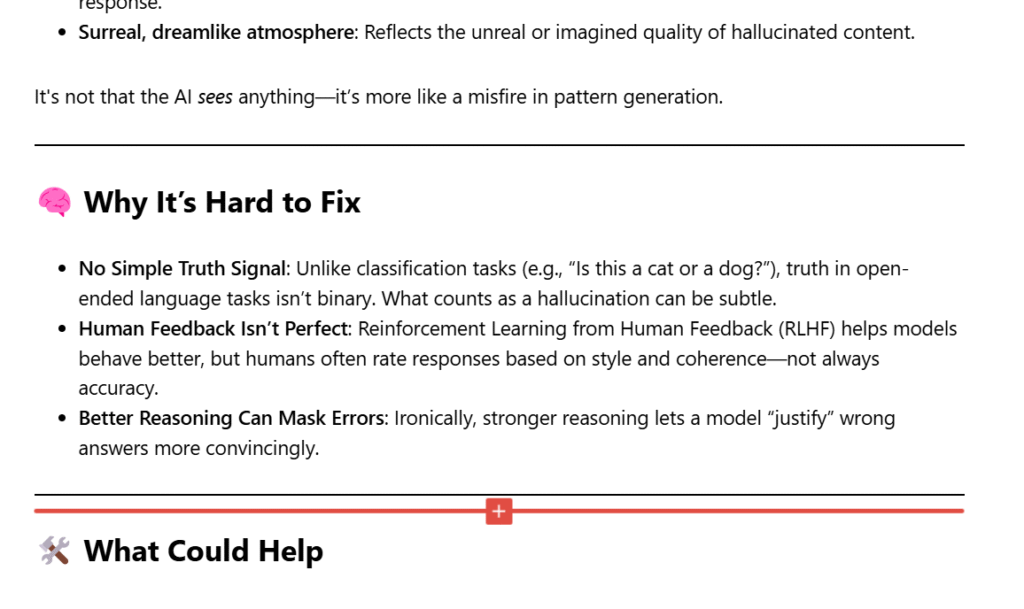
Check your whole post or page for invalid characters (e.g. Unicode Characters, symbols, emojis, etc.). The contents of the post or page will be added to the database when you hit ‘publish’ but there are some characters which can’t be included – this will return an ‘Updating failed. Could not update post in the database’ error. Here is an example of a post that wouldn’t save until I removed the ‘brain’ and ‘tools’ icons.
This problem with invalid characters most commonly happens when you’re pasting in contents from another website, e.g. ChatGPT
On occasion I’ve come across WordPress installations that don’t have English (UK) as an available language and it turns out it’s not such a straight-forward problem to fix.
The default WordPress installation comes with all manner of languages including Spanish, Japanese, Indonesian, and Korean, however, English (UK) isn’t always there. I suppose the reasoning behind this is that us native English speakers can get by just fine with the English (US) version, however, from a search engine localisation perspective it may not be so good.
Many of the tutorials tell you to update your ‘wp_config.php’ file to update your site default language but this more-than-often doesn’t actually work. The other problem is that the language files you need are not particularly easy to get hold of unless you’re quite technical.
Therefore, here is a simple tutorial on installing the English (UK) language files and setting this as your default ‘site language.’
Setting English (UK) as your default WordPress site language when it’s not available from the dashboard
To begin with you’ll need the correct language files. You can download them here: WP-english-GB-files
Unzip the files to a folder
Log into your site via FTP
Navigate to the public directory (the one containing the files index.php, wp_config.php, wp_login.php etc.)
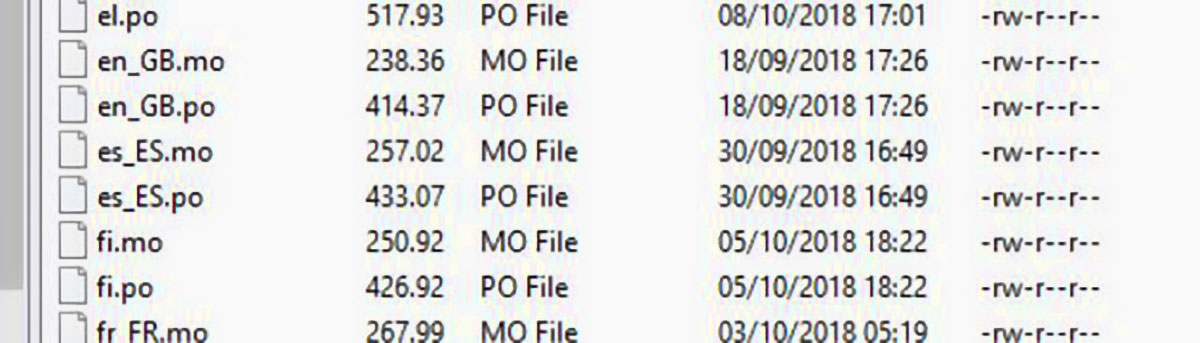
Open the ‘wp-content’ folder then the ‘languages’ folder. You should now see two folders called ‘plugins’ and ‘themes’ along with lots of files with the ‘.mo’ extension
Upload the English (UK) language files to this directory
Log into your WordPress dashboard through a browser
Go to ‘settings’
In the ‘General’ section, from the ‘site language’ drop-down list you’ll now find ‘English (UK)’
Update and save. Done
Need a hand?
Give us a call if you need a hand on 0114 383 0711
Moving a WordPress website to SSL is something we’ll all have to do at some point for existing sites and it can cause a lot of problems. Here is a list of some of the most common problems you may encounter when moving to SSL and HTTPS and how to deal with them.
Before we start, here is a little about SSL and HTTPS
SSL and HTTPS is a method of encryption that secures the connection between user’s browser and your WordPress server. This makes it much more difficult for anyone to intercept information sent between the two and therefore harder for anyone to eavesdrop on your connection.
Each SSL and HTTPS enabled site has a unique SSL certificate for identification purposes. This is very useful in identifying legitimate websites from spoof sites, meaning for example, your less likely to be caught scams like in phishing attempts.
WordPress site does not have a green padlock
This is the most common problem you’ll encounter after installing an SSL certificate on your WordPress site and is not always so straight forward to fix. The cause of this is non-secure content being called by your site such as external JavaScript files – in other words, your page is trying to include content from HTTP sources as opposed to HTTPS sources. This can usually be fixed by very simply updating the URL your calling to HTTPS. Load the problem web page or website, press CTRL+U to view the source, press CTRL+F and search for ‘https://’ – this will show you the URLs that are not secure. Once you’ve identified the problem URL, edit the template or site content to update them. Alternatively, a faster but riskier option is to do a blanket database search-and-replace ‘HTTP:’ with ‘HTTPS:’ as this normally fixes the majority of the problems.
WordPress site won’t load any more after changing the site URL to HTTPS
Updating the site URL and address via the dashboard settings is pretty straight forward, however, if your site is redirecting to the wrong address, you may no longer be able to log in. Therefore, you may need to change this setting directly in the database. To access the relevant table, log in to the database using PHPMyAdmin via your control panel. The site URL, as specified in the WordPress settings > General Settings > WordPress / site address, can be accessed directly through the database in the table wp_options > siteurl. If you’ve not got experience editing the database you should take a backup first just in case!
Too many redirects WordPress error message after moving to SSL
This can be caused by several configuration errors often within HTACCESS or your hosting control panel. However, If you’re forcing SSL and HTTP via the wp_config.php file, you may need to add an extra line of code to fix this:
The line of code added to the wp_config.php file to force SSL and HTTP is:
define('FORCE_SSL_ADMIN', true);
To fix the redirects error that can be caused by this code, add the following after the above line
if (strpos($_SERVER['HTTP_X_FORWARDED_PROTO'], 'https') !== false)

       $_SERVER['HTTPS']='on';
Note that this is the Chrome specific error but other browsers will give a similar error. This is to do with the fact that the browser has rejected the site’s SSL certificate. This is usually because the SSL certificate is for a different domain, the certificate has expired, or the browser doesn’t recognise the certificate issuing authority. This may mean reinstalling your certificate or getting he,p directly from the certificate provider.
—
If you’re having trouble moving your site to an SSL and HTTPS connection and need our help, call us today on 0114 383 0711 or send us a message through our contact page