This tutorial will show you how to use your free Gmail SMTP server to send emails from your personal email accounts using Outlook (this example uses Outlook 2007 but still applies in principle to the other versions of Outlook and other local email clients)
This has been prompted by the news that many Virginmedia customers have recently been informed that they will no longer be able to use their Virginmedia SMTP address to send emails other than from their Virginmedia email address. This tutorial will show you how to use your Gmail SMTP address instead
Step 1.
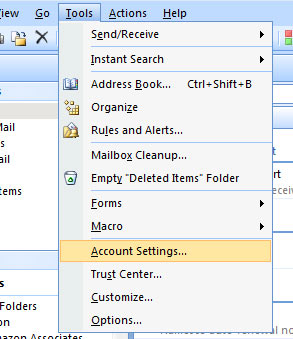
Open Outlook and select 'tools' (from the top menu) then select 'account settings'
Open Outlook and select 'tools' (from the top menu) then select 'account settings'
Step 2.
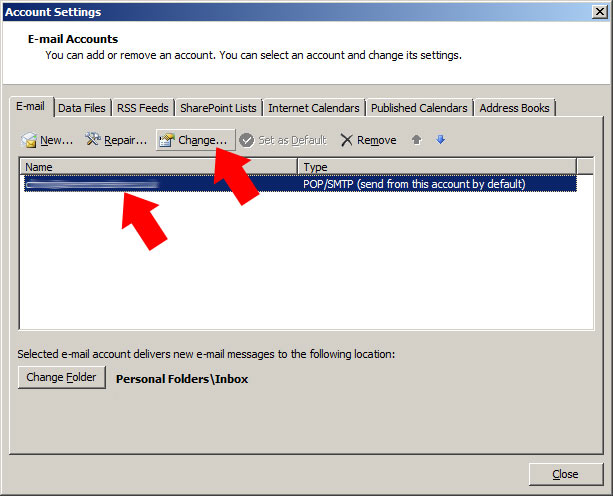
Highlight the account you would like to modify then press 'change'
Highlight the account you would like to modify then press 'change'
Step 3.
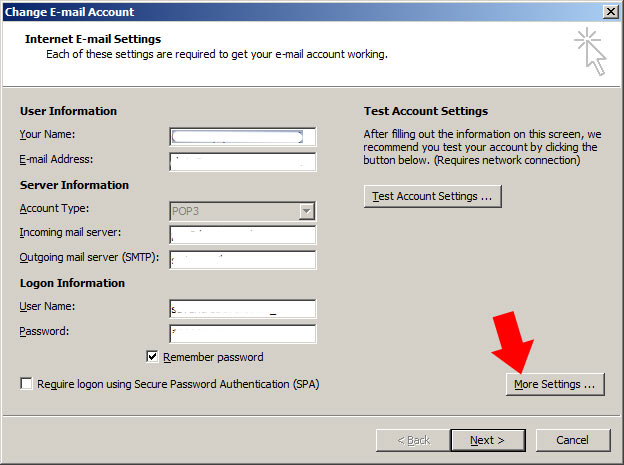
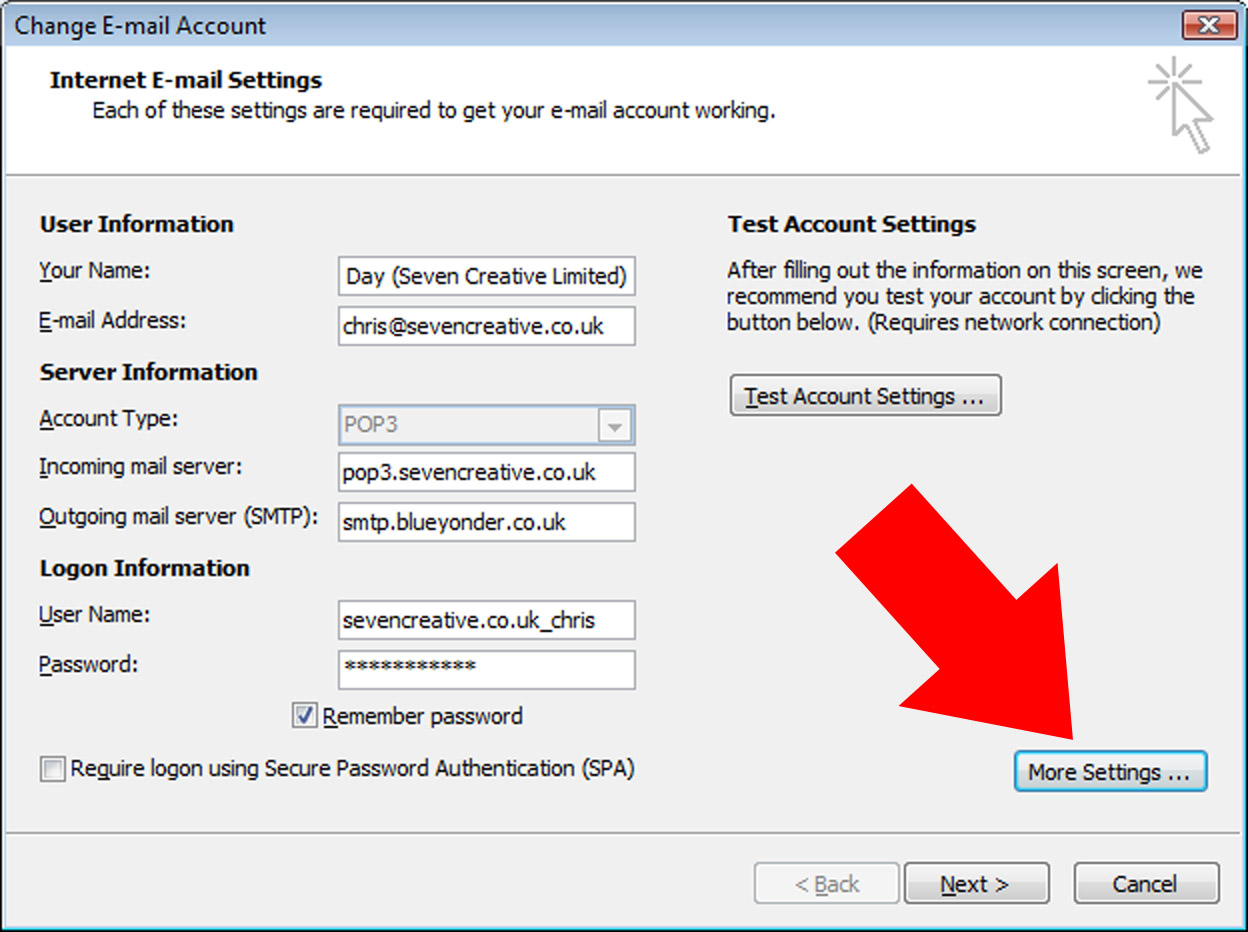
From the 'internet email settings' page, select 'more settings'
From the 'internet email settings' page, select 'more settings'
Step 4.
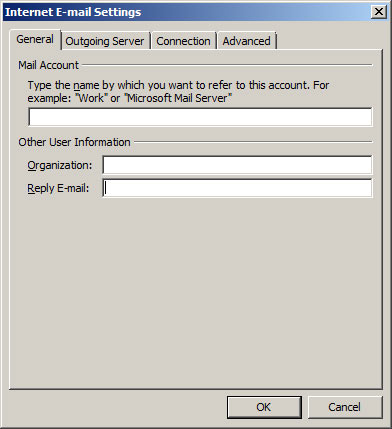
Fill in the information in the three boxes on the 'general' tab (the name you'd like to call this account can be anything, you can leave organisation blank and the reply-to addrsess is the address you'd like people to reply to)
Fill in the information in the three boxes on the 'general' tab
Step 5.
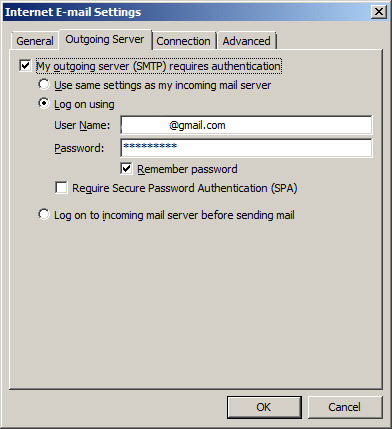
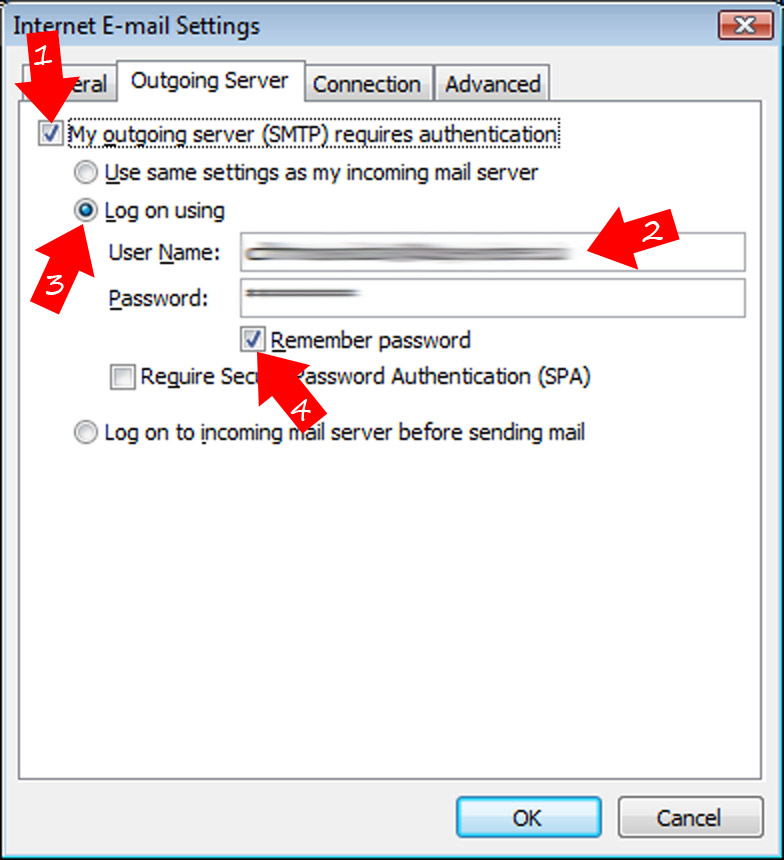
On the outgoing server tab, fill in the following
tick the box that says 'my outgoing server requires authentication',
tick the 'log on using...' option
in the 'user name' box, type in your full Gmail email address
in the password box, type in your Gmail password (the same one you'd use to log into your Gmail account)
un-tick the 'require secure password authentication' and 'log into mail server before...' options
On the outgoing server tab, fill in the following
Step 6.
No need to change anything on the 'connections' tab
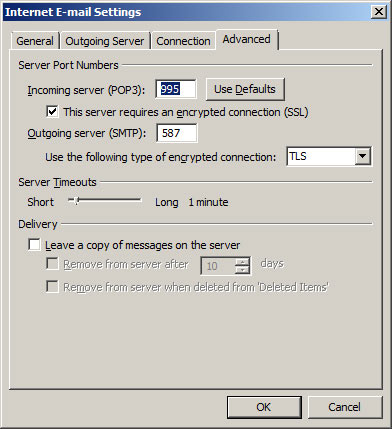
Fill in the following on the 'advanced' tab
change 'incoming server (POP3)' to 995
tick the box 'the server requires an encrypted connection (SSL)'
change 'outgoing server' to 587
from the drop-down options, change the 'use the following type of encrypted connection' to TLS
leave 'server timeouts' as is
un-tick the 'leave copies of the messages on the server' (...which will download the actual email to your computer as opposed to just a copy - this helps avoid duplication)
tick 'OK' to take you back to the 'internet e-mail settings' page
Fill in the following on the 'advanced' tab
Step 7.
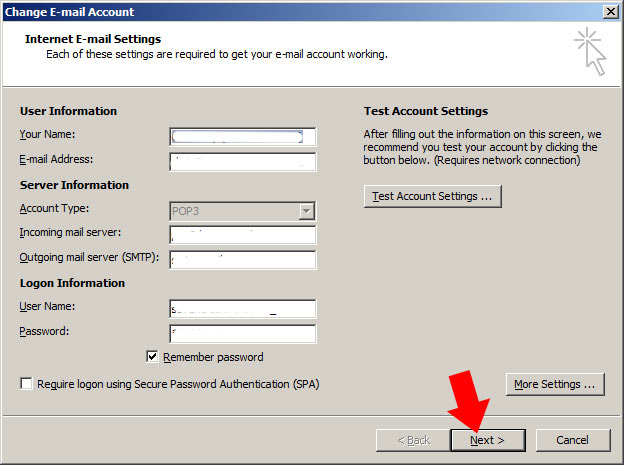
Back on the 'internet e-mail settings' page, click next to save the changes
Back on the 'internet e-mail settings' page, click next to save the changes
Here is a really simple and easy way to clear formatting from text in a Microsoft Word document, for example, when you’ve cut and pasted from a website or another document
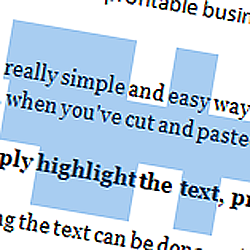
Very simply highlight the text, press and hold CTRL then press the ‘space bar’
Highlighting the text can be done easily in one of three ways:
Press CTRL + A to select all
place the cursor just before the text you’d like to highlight, press and hold the left-mouse button and drag the hightlighted area over the text you’d like to highlight
Place the cursor at the start of the text you’d like to highlight, press and hold the ‘SHIFT’ button and use the arrow keys to move the highlighted area to the right place
Please note, if you’d like to select non-adjoining areas of text at the same time, press and hold the ‘CTRL’ key while you’re selecting text
When using a laptop or mobile device, you’re potentially going to be sending emails over many different internet networks. In order to make sure that only the allowed users are using a particular SMTP to send email, they commonly require a user-name and password to log into the SMTP server every time an email is sent. This is not something you’d normally notice as your computer should do this automatically in the background, however, if that authentication fails, you’ll not be able to send emails
If your outgoing email server on Outlook 2007 requires authentication, use the following steps to add the user-name and password:
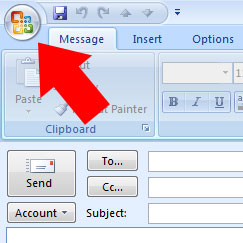
Open Outlook
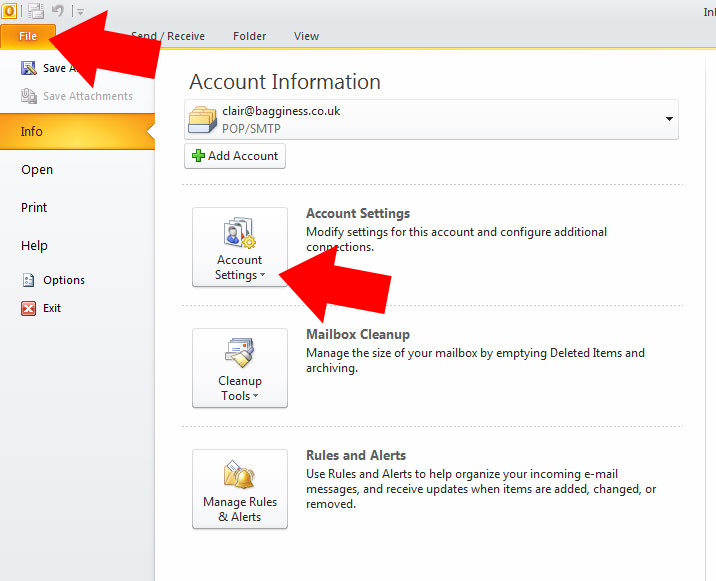
Click the ‘tools’ tab from the top menu then click ‘account settings’
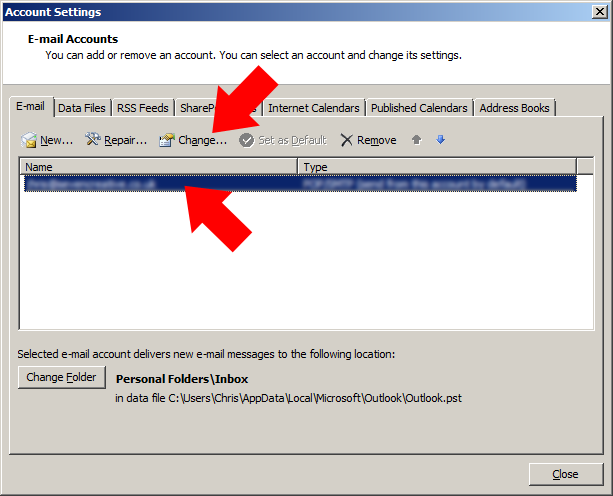
Highlight the account you’d like to edit then select ‘change’
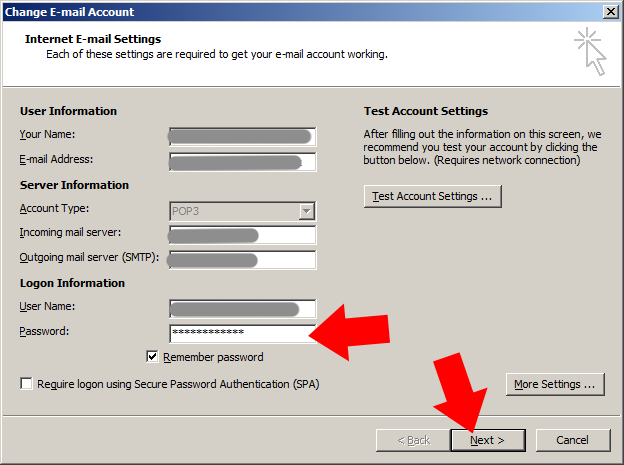
On the internet e-mail settings page click ‘more settings’
On the internet e-mail settings page click ‘more settings’
On the new window, click the ‘outgoing server’ tab
On the new window, click the ‘outgoing server’ tab
Change the following settings:
Tick the box ‘my outgoing server requires authentication’
Tick the ‘log on using’ button
Type in your normal username and password
Tick the ‘remember password’ button
Click ‘OK’ which will take you back to the main ‘email settings’ page
This tutorial is specifically for Microsoft Word and Outlook, however, as with many keyboard shortcuts, they’ll often be supported by many other applications
Ever accidentally hit the CAPS LOCK button and written a whole paragraph in capitals? Or how about got one of those shouty emails all in caps that are difficult to read?
Good news – there is an ultra-simple way to swap between capitals and lowercase! It’ll even capitalise the starts of paragraphs for you!
Simply, highlight the offending text, hold down ‘SHIFT’ and press ‘F3’. That’s it!
In Outlook, you’ll have to click reply or forward first to make the text area editable but it still works!
If you were in any doubt that offline advertising spend had fallen in 2009, this physical comparison between the Yellow Pages directories from 2009 and 2010 should convince you. The 2010/11 edition is literally 40% thinner than the 2009/10 edition.
According to IAB (2010), in the UK, the entire advertising sector contracted by 16.6% in the first half of 2009, however, the online advertising share grew by 4.6% to a record 23.5% share of the market.
Obviously, in the midst of a recession, you’d expect advertising spend to decline, however, it seems as if many companies are realising that the traditional forms of advertising and marketing may not be the best way to reach customers and deciding rather to look towards the internet.
Google dominates the pay-per-click (PPC) advertising world with a 65.4% market share (AFP, Feb 2010) and for most people, they’re the only place they’ll ever think of advertising online.
There is, however, another way!
The primary objective, when deciding your marketing approach, will be to give you the best return-on-investment (a.k.a. ROI) which, to put it another way, basically means get the most customers for the least spend.
Google advertising is great for some businesses, but for others, it’ll never work – potential customers simply don’t use the internet to find some kinds of suppliers. Even for the businesses where it potentially works well, so much money is sometimes wasted through poorly researched and implemented key-phrases and badly-planned campaigns that they never reach their potential. Besides this, as the main player in the PPC world, competition for key words and phrases can be fierce!
Social network advertising, on the other hand, has shown some fantastic results with campaigns we’ve run recently. One of the main problems with Google PPC is you are only able to target customers geographically. Social Network Marketing, on the other hand, allows you to also target customers demographically and psychographically! As a relatively new avenue, the current costs can be much lower than Google PPC and you have the option to also pay by impression if you’d prefer.
Search Engine Optimisation (SEO) as another way to boost your organic search engine rakings. Whereas the results can sometimes be much less tangible than the PPC campaigns; a well optimised web site can give a much better ROI over time.
If you’re certain that traditional Search Engine PPC is the one for you, consider Bing, Microsoft’s search engine competitor to Google and Yahoo. Bing is currently gaining search engine market share from Google and Yahoo remains a force in the market.
Whichever you choose, as ever, the key to getting it right is good planning.
More information
With many years experience of online and offline advertising campaign planning, setup and management, Seven Creative are perfectly placed to help your business get the best ROI by optimising your sales and marketing activity
If you’d like Seven creative to help you with your marketing strategy, give us a call on 0114 383 0711 (international: +44 114 383 0711) or contact us through the website
There are hundreds of short-cut keyboard combinations and when you start to learn them , they can really help you save a lot of time!
Many of them are also transferable meaning, for example, some that work with MS Word may also work with Photoshop.
CTRL+C and CTRL+V are very common and widely supported short-cuts for copy and paste, but most people know these already. below, however, are a lot short-cuts you probably didn’t know!
CTRL+TAB – Move forward through tabs.
CTRL+SHIFT+TAB – Move backward through tabs.
TAB – Move forward through options.
SHIFT+TAB – Move backward through options.
ALT+Underlined letter – Carry out the corresponding command or select
the corresponding option.
ENTER – Carry out the command for the active option or button.
SPACEBAR – Select or clear the check box if the active option is a check
box.
Arrow keys – Select a button if the active option is a group of option
buttons.
F1 – Display Help.
F4 – Display the items in the active list.
BACKSPACE – Open a folder one level up if a folder is selected in the
Save As or Open dialog box.
CTRL+C – Copy.
CTRL+X – Cut.
CTRL+V – Paste.
CTRL+Z – Undo.
CTRL+Y – Redo
DELETE – Delete.
SHIFT+DELETE – Delete selected item permanently without placing the item
in the Recycle Bin.
CTRL while dragging an item – Copy selected item.
CTRL+SHIFT while dragging an item – Create shortcut to selected item.
F2 – Rename selected item.
CTRL+RIGHT ARROW – Move the insertion point to the beginning of the next
word.
CTRL+LEFT ARROW – Move the insertion point to the beginning of the
previous word.
CTRL+DOWN ARROW – Move the insertion point to the beginning of the next
paragraph.
CTRL+UP ARROW – Move the insertion point to the beginning of the
previous paragraph.
CTRL+SHIFT with any of the arrow keys – Highlight a block of text.
SHIFT with any of the arrow keys – Select more than one item in a window
or on the desktop, or select text within a document.
CTRL+A – Select all.
F3 – Search for a file or folder.
ALT+ENTER – View properties for the selected item.
ALT+F4 – Close the active item, or quit the active program.
ALT+Enter – Displays the properties of the selected object.
ALT+SPACEBAR – Opens the shortcut menu for the active window.
CTRL+F4 – Close the active document in programs that allow you to have
multiple documents open simultaneously.
ALT+TAB – Switch between open items.
ALT+ESC – Cycle through items in the order they were opened.
F6 – Cycle through screen elements in a window or on the desktop.
F4 – Display the Address bar list in My Computer or Windows Explorer.
SHIFT+F10 – Display the shortcut menu for the selected item.
ALT+SPACEBAR – Display the System menu for the active window.
CTRL+ESC – Display the Start menu.
ALT+Underlined letter in a menu name – Display the corresponding menu.
Underlined letter in a command name on an open menu – Carry out the
corresponding command.
F10 – Activate the menu bar in the active program.
RIGHT ARROW – Open the next menu to the right, or open a submenu.
LEFT ARROW – Open the next menu to the left, or close a submenu.
F5 – Refresh the active window.
BACKSPACE – View the folder one level up in My Computer or Windows
Explorer.
ESC – Cancel the current task.
SHIFT when you insert a CD into the CD-ROM drive – Prevent the CD from
automatically playing.
Windows Key – Display or hide the Start menu. Windows Key +BREAK –
Display the System Properties dialog box.
Windows Key +D – Show the desktop.
Windows Key +M – Minimize all windows.
Windows Key +Shift+M – Restores minimized windows.
Windows Key +E – Open My Computer.
Windows Key +F – Search for a file or folder.
CTRL+ Windows Key +F – Search for computers.
Windows Key +F1 – Display Windows Help.
Windows Key + L – Lock your computer if you are connected to a network
domain, or switch users if you are not connected to a network domain.