
Tag: Microsoft Word

  • Short-cut to easily clear formatting from text in a Word document

    Clearing formatting from a Word document
    Clearing formatting from a Word document

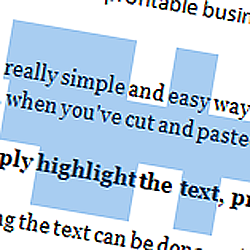
    Here is a really simple and easy way to clear formatting from text in a Microsoft Word document, for example, when you’ve cut and pasted from a website or another document

    Very simply highlight the text, press and hold CTRL then press the ‘space bar’

    Highlighting the text can be done easily in one of three ways:

    1. Press CTRL + A to select all
    2. place the cursor just before the text you’d like to highlight, press and hold the left-mouse button and drag the hightlighted area over the text you’d like to highlight
    3. Place the cursor at the start of the text you’d like to highlight, press and hold the ‘SHIFT’ button and use the arrow keys to move the highlighted area to the right place
    Please note, if you’d like to select non-adjoining areas of text at the same time, press and hold the ‘CTRL’ key while you’re selecting text

  • Convert text to lower-case, upper-case or capitalised the easy way!

    CAPS-LOCK
    CAPS-LOCK = SHOUTING

    This tutorial is specifically for Microsoft Word and Outlook, however, as with many keyboard shortcuts, they’ll often be supported by many other applications

    Ever accidentally hit the CAPS LOCK button and written a whole paragraph in capitals? Or how about got one of those shouty emails all in caps that are difficult to read?

    Good news – there is an ultra-simple way to swap between capitals and lowercase! It’ll even capitalise the starts of paragraphs for you!

    Simply, highlight the offending text, hold down ‘SHIFT’ and press ‘F3’. That’s it!

    In Outlook, you’ll have to click reply or forward first to make the text area editable but it still works!

    Very handy!