Tag: email

  • The ‘Undeliverable Email’ Notifications Problem

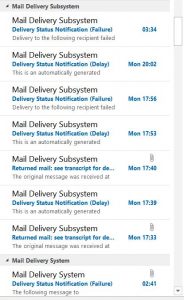
    It’s a very common problem to, out of the blue, start to get lots and lots of ‘mail delivery failure’ type emails but unfortunately there’s not a lot we can do to stop this.

    Short explanation
    The ‘Undeliverable Email’ Notifications Problem
    The ‘Undeliverable Email’ Notifications Problem

    When spammers send out their spam emails they need to pretend these emails are from a legitimate source otherwise they won’t be successfully delivered. Every email has certain information extra attached to it such as a sender address so you know who it’s from. Spammers will fake this information to make sure the emails get through spam filters so if you’re suddenly receiving a lot of ‘mail delivery failure’ messages, there’s a very good chance someone is sending out spam emails pretending to come from your email address.

    The good news is it’s probably nothing personal, it’s unlikely to affect your domain adversely in the long-term, and the problem normally tails off after a week or two

    Longer explanation

    From my experience, the problem usually spikes within the first week and only lasts about 2 or 3 weeks in total.

    The best way to understand why this happens, in my opinion, is to think about it like this:

    Imagine if Jim didn’t want to receive a letter in the post from Bob but Bob wanted to send a letter to Jim anyway. If, when Bob puts his letter to Jim in the post, he puts the ‘sender’ address on the back of the envelope as someone else other than himself, Jim wouldn’t know the letter was from Bob until he actually received it and opened it.

    Just like a letter you receive in the post, emails also have a ‘sender’ address that can be ‘faked’ or ‘spoofed.’

    In the example above, Bob is the email spammer – he wants to send emails to Jim (and millions more) about things like fake watches and pharmaceuticals – but his emails would be easily caught by spam filters because Bob is a known spammer. Jim, on the other hand, is just one of millions of random recipients. And the sender address on the back of the ‘envelope’ is yours because you’re not a known spammer so emails from you pass easily through the spam filter… although it could actually be anybody’s address used as the ‘sender’

    So, here is why you’re getting so many ‘Undeliverable Email’ Notifications:

    1. Bob sends his millions of emails out to random recipients,
    2. Bob puts the ‘sender’ address as yours,
    3. the spam filters see that these emails are from, they know you’re not a spammer, so they let these emails through the filter,
    4. Jim, on the other hand, opens the email from Bob and sees it’s spam so marks it accordingly
    5. after a while, the spam filters begins to suspect you are a spammer
    6. the spam filters begin to reject emails from you they now think you’re a spammer
    7. you start getting ‘undeliverable email’ notifications as these emails are rejected and sent back to what they believe are the ‘sender’ i.e. you
    8. now his email’s are getting rejected, Bob starts to use a different ‘sender’ address
    9. your ‘undeliverable email’ notifications begin to tail off as Bob is now using someone else’s address as the ‘sender’ address

    So, the bad news is that there is no way we can talk to Bob directly to ask him nicely to not use your email address as the ‘sender’ address

    The good news is that it’s nothing personal, there shouldn’t be any long-term damage to your domain name, and the problem should naturally stop after a few weeks all by itself
     

  • How to find your email signature folder in Outlook

    …and how to edit it

    If you use Outlook to send and receive emails, you’re probably also using the ’email signature’ facility that allows you to create a custom bit of text and images that appears at the end of the emails you write.

    The problem is, the in-built email signature editor in Outlook is very basic! If you want to create something a bit more complex, sometimes the only option is to do it manually.

    Each email signature is made up of three files – signature.rft, signature.html, and signature.txt. These are three different versions of the same signature but used for different types of emails, for example, plain text or rich text. (Note: where I’ve used the word ‘signature’ in the file names in this paragraph, for your email signature, it will be whatever you have named it e.g. ‘My Email Sig.txt’)

    Together with these three files there is usually also a directory (aka folder) which contains the corresponding images.

    If you can find these files, edit them manually, and save them as they are, you’ll be able to do a lot more in terms of layout and functionality than if you’re just editing these through the Outlook email signature editor.

    Firstly, create the files (the signatures folder is created when the first email signature is saved):

    1. Open Outlook, click the ‘tools’ option from the top row of options, then click ‘options’ from the drop-down menu
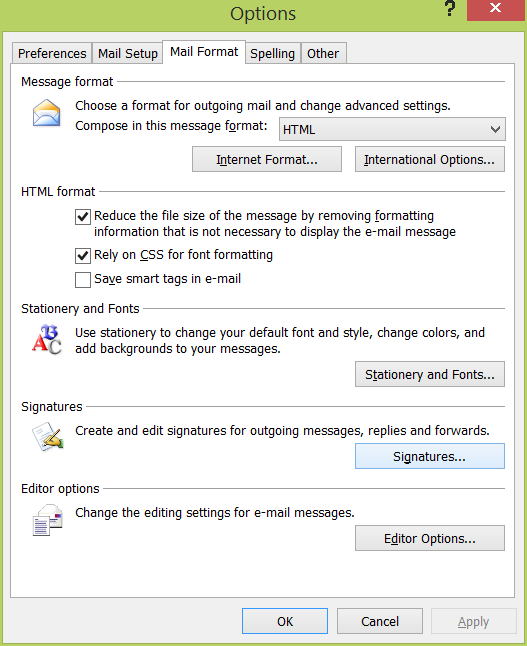
    2. From the ‘Options’ dialogue box that pops up, click the ‘mail format’ tab then click ‘signatures’
    3. from within the ‘Signatures and stationery’ dialogue box, click ‘new’, give it a name, then press OK then save.
    from within the 'Signatures and stationery' dialogue box, click 'new', give it a name, then press OK then save.
    from within the ‘Signatures and stationery’ dialogue box, click ‘new’, give it a name, then press OK then save.

    Now to edit the files:
    To find these files we’ve just created:

    1. Go to file explorer – either press ‘Windows key’ + E or go to my computer
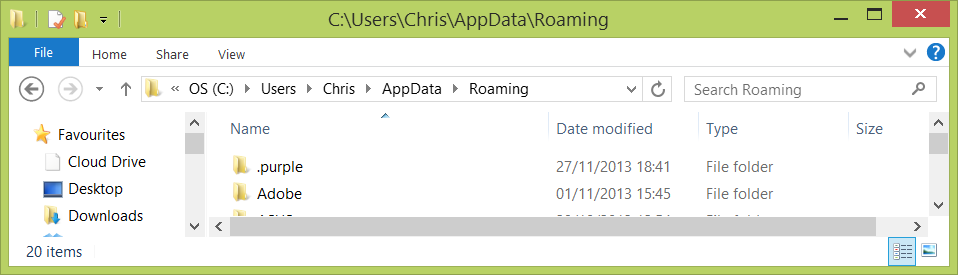
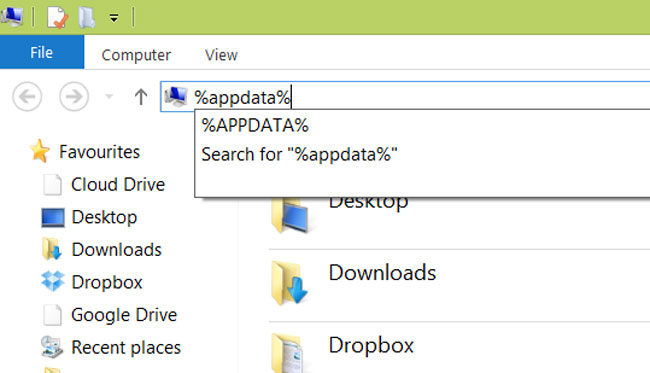
    2. Type ‘%APPDATA%’ (without the quotes) into the address bar at the top and press enter or from My Computer navigate from C: to ‘Users’, ‘Your user name’, ‘appdata’
    3. from ‘appdata’ click on ‘Microsoft’ then ‘signatures’ (please note this folder won’t exists until you’ve created your first email signature through Outlook)
    Open the file explorer, and type '%APPDATA%' (without the quotes) into the address bar at the top then press enter
    Open the file explorer, and type ‘%APPDATA%’ (without the quotes) into the address bar at the top then press enter
    Go to file explorer - either press 'Windows key' + E or go to my computer
    Go to file explorer – either press ‘Windows key’ + E or go to my computer
    • The text file can be easily edited using Notepad or similar. This is the signature that is included when the mail format is ‘plain text’ meaning you can’t have any pictures included and you have limited control over formatting and fonts.
    • The HTML file can be edited using Notepad if you know HTML, or alternatively, you may need a visual HTML editor to make changes.
    • The RTF file can be edited using MS Word or similar. The RTF anf HTML files are included when you send your email in rich text format
    • Don’t forget to stick to the hyperlink format and include any images you include in the respective folder within the signatures folder
  • How to take a screen capture and send it by email

    This tutorial is about taking a shot of your computer screen and sending it – very useful when asking for technical support by email. This assumes you are using a PC and a local email client such as Outlook.

    1. Get whatever it is you’d like to get a screen capture of up on your screen
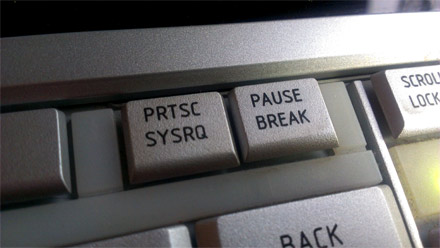
    2. Press the ‘PRTSC’ button. This is short for ‘Print Screen’ and will take a snapshot of your computer screen before sending it. Note: if you’re sending a screen capture of a website, you can press F11 to go full screen before taking the capture (press F11 again to exit full screen mode)

      PRTSC - press to take a screen capture
      PRTSC – press to take a screen capture
    3. Open your email client and open a new email
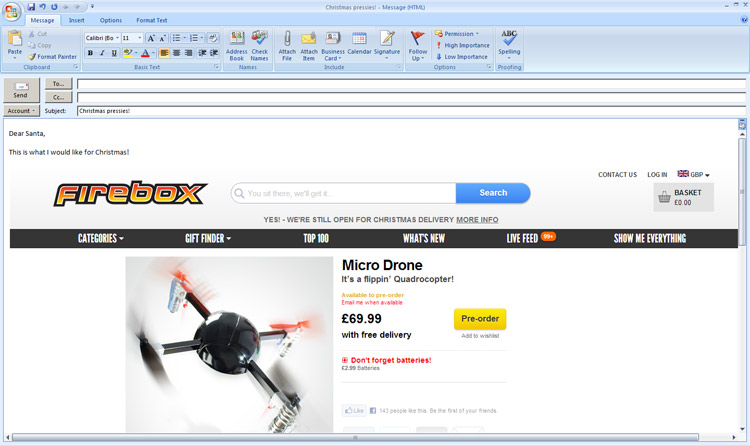
    4. With the cursor in the body of the email at the appropriate place, press and hold ‘CTRL’ then press ‘v’ once. This will paste the screen capture from your clipboard into the email.

      Insert screen capture into your email
      Insert screen capture into your email
  • 553 sorry, that address is not in my list of allowed recipients email problem

    553 sorry, that address is not in my list of allowed recipients email problem

    if you’re regularly getting emails bounced back to you with the error ‘553 sorry, that address is not in my list of allowed recipients’ this might help.

    In our experience, the problem is usually down to a BT issue not allowing emails to be delivered.

  • Most common causes for emails not going through

    Are the occasionals emails not going through to the recipient? Here is a list the most common causes:

    • Are your emails simply ending up int he the recipients spam folder? Sounds obvious but this is the final main cause of emails not going through that make up the ‘big 3’. Check there first – it’s the fastest and one of the most common reasons your email isn’t being received
    • The ’email address miss-pelt’ accounts for a good proportion of email delivery problems, in my experience. Check you have spelt the bit after the ‘@’ correctly first by copying the domain and pasting it into your browser address bar. If it doesn’t resolve to a website, it’s probably because of that.
      • Carefully check the first part of the address is right (usually the recipient name). Some email accounts aren’t set up to catch misspelled email addresses so a simple extra ‘.’ In the name might mean the difference between being received or rejected
      • Following on from the previous points; is the domain extension right? Have you sent the email to ‘.co.uk’ when it should have gone to ‘.com’ instead?
    • One of the other main reasons emails don’t go through is due to either the domain or the sender’s IP being blocked by the recipients spam filter. If you got an ‘undelivererable’ report back when you tried to send your email, read it carefully as there’s normally a link there to ‘unblock’ your IP address
    • Did you send an attachment? Big attachments will cause many emails to be rejected. Many email addresses won’t accept attachments over 10MB. Try sending without the attachment
    • Check with your internet connection supplier. Some draconian setups from certain providers, who will remain nameless, put very heavy restrictions on sending email through their lines. On occasion, sending too many email triggers restrictions and in other instances, recipient’s domain names have had to be defined with them in advance
    • Firewalls and spam filters aren’t always particularly fond of emails that contain links, images and attachments (particularly executable attachments). Even emails that are too short sometimes trigger spam filters. Try writing a plain text email with no attachments to see if this is the cause
    • If you’re using a mail server, such as Exchange, there is a chance that it is incorrectly configured. This has been the cause of several of our customer’s problems in the past.

    If all of the steps above don’t work, try the following

    • Call the recipient and ask them to email you. Replying to their email means you take human error out of the equation
    • Email them from a different email account on a different server, e.g. Hotmail, Gmail or Yahoo Mail. This takes any potential SMPT error out of the equation

    Still not working? Then it’s probably due to your emails being blocked or bounced by the recipients Spam filter. Contact their IT support and ask them to add your domain to their ‘safe senders’ or ‘white’ list