Category: Software

  • How to reset your Zen Cart ecommerce admin password manually

    Disclaimer and warning: manually editing your Zen Cart database runs the risk of corrupting your site and losing everything so only attempt this if you’re confident you know what you’re doing and are happy to take the risk. This tutorial is intended as a quick guide and relates for standard Zen Cart installations only. If you have any concerns or are not experienced with PHP MyAdmin, MD5 hashes or editing a database, please ask an expert to do this for you instead. We can’t be held responsible for anything that might go wrong as a result of attempting to fix this yourself.

    If you’d prefer us to manually reset your Zen cart password, get in touch.

    If you’re using Zen Cart and lose your password, for whatever reason, and the ‘resend password’ option isn’t working, it is possible to manually reset your password directly through the database.

    Here is how you do it:

    1. Log in to your Zen Cart database using PHP MyAdmin
    2. Find the ‘admin’ table
    3. Replace the MD5 hash with the following: 351683ea4e19efe34874b501fdbf9792:9b
    4. Go back to the login page on your Zen Cart site and login again using the password ‘admin’

    Once you’re logged in to your site again you’ll need to reset the password straight away to something more secure. Good luck!

    More information on Zen Cart passwords

    An MD5 hash is an algorithm generally to encrypt a password. This algorithm is one-way meaning you can’t de-encrypt the phrase or word from the hash.

    There are, however, several openly available databases allowing you to look up an MD5 hash to find the corresponding word or phrase so this is why it’s very important to choose a complicated string when you pick your password. All the commonly occurring words and common passwords can be easily found but a password that is long, unique and complex will be almost impossible to discover.

    Long, complex passwords are, however, not very user friendly for us humans so many people still decide to go against the advice and choose something simple for their password so one way to get round this problem is by using a ‘salt’

    A ‘salt’ is a word or phrase that is combined with the required password to create the MD5 hash. When you log into your website, this is how the site checked you’ve entered the right password:

    1. Combines what you’ve entered in the ‘password’ field with the predefined ‘salt’
    2. Creates an MD5 hash from this combination
    3. Compares this hash with the correct password hash stored in the database
    4. Match means the password is correct

    Let us know if you need any help with your Zen Cart passwords



  • R.I.P Adobe Flash Player – August 15th 2012

    Adobe Flash Player meets it's demise
    Adobe Flash Player meets it’s demise

    Not so long ago, the only way to have a half-decent looking animation on a website was using Adobe Flash.

    Movement and interactive images could help sites engage with their customers and it was therefore a useful tool for some sites.

    Because, at Seven Creative, we have always focussed on creating usable and optimised websites without sacrificing anything to ‘floweriness’, we’ve generally always avoided using Flash or, at least, only ever used it where appropriate. We could see the usefulness of the software for some niche sites, however, the negatives always outweighed any potential gains.

    This is why we could see the impending end of Flash when most of the industry was still using this technology.

    One of the main issues with Flash is that it can’t be read by search engines. Sites that are built this way – or even have areas like their navigation in Flash – will not index for these generally highly important site elements. Opportunities are lost as function is sacrificed to form.

    One of our other main bug niggles with Flash is that you can’t edit it in the way that you can easily edit HTML using a WYSIWYG editor which is why it’s not something we would feel comfortable providing to our customers. Technology has evolved and there are newer and better methods for providing the same level of animation and interaction but with easily editable content.

    Roll on a few years and Apple release their range of mobile devices that don’t support Flash. Suddenly, there are a lot of websites that won’t display properly – if at all – on some mobile devices.

    This shook the industry and signalled the beginning of the end.

    Android – Google’s operating system – is released and initially supported Flash, however, they’ve recently said that, from version 4.1, they’ll no longer be supporting this anachronistic technology.  So, from August 15th 2012, any Android device that does not currently have Flash Player installed will never be able to install it.

    There is no doubt that other browsers will also begin to end support for this technology over the next few years.

    Good news for us and our customers but bad news for the hundreds of thousands of websites out there that rely on Flash.

    You might think that we’re still OK at the moment as this currently only really effects mobile devices, however, they already account for a good chunk of the visitors to most websites and this is only set to increase. This is before you get us started on the missed opportunities in search engine optimisation terms!

    If you want our advice, act now. Dumping Flash might not be such a big issue for most sites and may not require a full rebuild.

    If digital marketing is all about spotting and taking opportunities, seeing an opportunity and ignoring it is madness!

  • Short-cut to easily clear formatting from text in a Word document

    Clearing formatting from a Word document
    Clearing formatting from a Word document

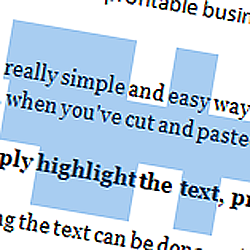
    Here is a really simple and easy way to clear formatting from text in a Microsoft Word document, for example, when you’ve cut and pasted from a website or another document

    Very simply highlight the text, press and hold CTRL then press the ‘space bar’

    Highlighting the text can be done easily in one of three ways:

    1. Press CTRL + A to select all
    2. place the cursor just before the text you’d like to highlight, press and hold the left-mouse button and drag the hightlighted area over the text you’d like to highlight
    3. Place the cursor at the start of the text you’d like to highlight, press and hold the ‘SHIFT’ button and use the arrow keys to move the highlighted area to the right place
    Please note, if you’d like to select non-adjoining areas of text at the same time, press and hold the ‘CTRL’ key while you’re selecting text
  • My 3 favourite Chrome extensions (plug-ins)

    Here is a list of my 3 favourite Chrome Plug-ins

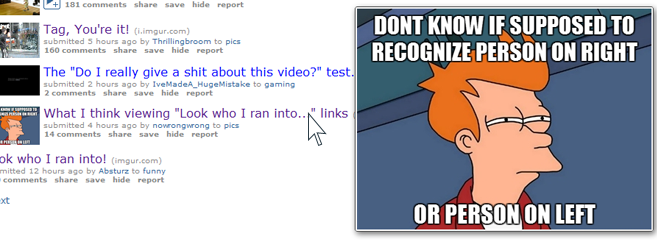
    1. Hover Zoom – no need to click on that thumbnail to view it large. Simply install Hover Zoom then all you have to do is hover over the picture and you get a large version. Great for Reddit.

      Hover Zoom
      Hover Zoom
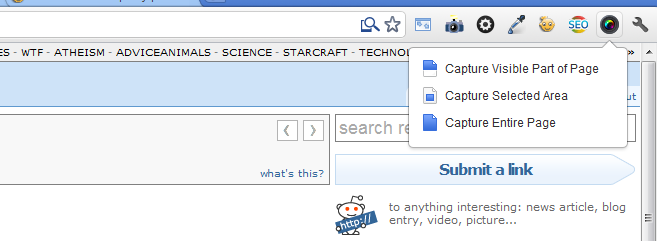
    2. Awesome Screenshot: Capture & Annotate – allows you to capture either the visible area of your screen or the full webpage. You can then annotate it. Very useful for describing  what you can see on your screen to someone else like tech support.
      Awesome Screenshot: Capture & Annotate
      Awesome Screenshot: Capture & Annotate

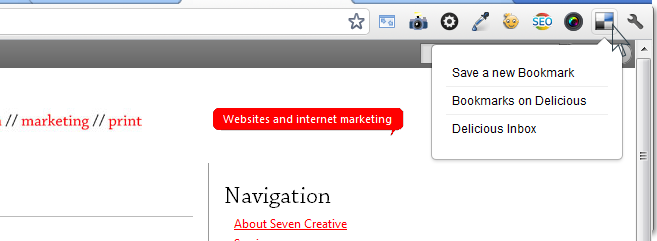
      3. Delicious Tools – sure makes adding a bookmark to Delicious a whole lot easier and quicker. Simply click the button and add the tags.

      Delicious ToolsDelicious Tools

  • Instructions about how to back up and export webmail emails from Horde


    Instructions about how to back up and export webmail emails from Horde
    Instructions about how to back up and export webmail emails from Horde

    Instructions about how to back up and export webmail emails from Horde

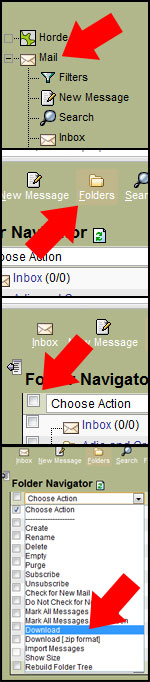
    If you’re using Horde to manage your webmail emails and want to back them up, you may have realised that it seems to be not as easy to do as you’d hope without going through and forwarding email groups individually

    Fortunately, it is actually pretty simple if you know how to do it and here’s how:

    1. Click on ‘mail’ on the left menu
    2. Click on ‘folders’ from the top menu
    3. Tick the boxes of the folders you’d like to export
    4. From the drop-down box ‘actions’ select ‘download’

    This will download your emails in an ‘MBOX’ container file format

    Alternatively, if you want to forward your messages in groups; view the emails you’d like to forward, tick the box next to them and then click on ‘forward’ which should be just above the top email

    Horde
    Horde
  • What is a webloc file or the .webloc file extension?

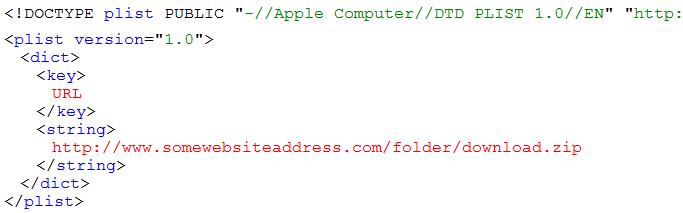
    A Webloc file shortcut to a webpage or URL and is usually created by Safari the Mac OS X by dragging a website icon to a location on a computer

    Using windows

    To find the URL, open this file with any text editor such as Notepad or Opera Browser and copy the URL to your browser address bar

    Example .webloc file contents
  • Windows keyboard short-cuts everyone should know!

    There are hundreds of short-cut keyboard combinations and when you start to learn them , they can really help you save a lot of time!

    Many of them are also transferable meaning, for example, some that work with MS Word may also work with Photoshop.

    CTRL+C and CTRL+V are very common and widely supported short-cuts for copy and paste, but most people know these already. below, however, are a lot short-cuts you probably didn’t know!

    • CTRL+TAB – Move forward through tabs.
    • CTRL+SHIFT+TAB – Move backward through tabs.
    • TAB – Move forward through options.
    • SHIFT+TAB – Move backward through options.
    • ALT+Underlined letter – Carry out the corresponding command or select
      the corresponding option.
    • ENTER – Carry out the command for the active option or button.
    • SPACEBAR – Select or clear the check box if the active option is a check
      box.
    • Arrow keys – Select a button if the active option is a group of option
      buttons.
    • F1 – Display Help.
    • F4 – Display the items in the active list.
    • BACKSPACE – Open a folder one level up if a folder is selected in the
      Save As or Open dialog box.
    • CTRL+C – Copy.
    • CTRL+X – Cut.
    • CTRL+V – Paste.
    • CTRL+Z – Undo.
    • CTRL+Y – Redo
    • DELETE – Delete.
    • SHIFT+DELETE – Delete selected item permanently without placing the item
      in the Recycle Bin.
    • CTRL while dragging an item – Copy selected item.
    • CTRL+SHIFT while dragging an item – Create shortcut to selected item.
    • F2 – Rename selected item.
    • CTRL+RIGHT ARROW – Move the insertion point to the beginning of the next
      word.
    • CTRL+LEFT ARROW – Move the insertion point to the beginning of the
      previous word.
    • CTRL+DOWN ARROW – Move the insertion point to the beginning of the next
      paragraph.
    • CTRL+UP ARROW – Move the insertion point to the beginning of the
      previous paragraph.
    • CTRL+SHIFT with any of the arrow keys – Highlight a block of text.
    • SHIFT with any of the arrow keys – Select more than one item in a window
      or on the desktop, or select text within a document.
    • CTRL+A – Select all.
    • F3 – Search for a file or folder.
    • ALT+ENTER – View properties for the selected item.
    • ALT+F4 – Close the active item, or quit the active program.
    • ALT+Enter – Displays the properties of the selected object.
    • ALT+SPACEBAR – Opens the shortcut menu for the active window.
    • CTRL+F4 – Close the active document in programs that allow you to have
      multiple documents open simultaneously.
    • ALT+TAB – Switch between open items.
    • ALT+ESC – Cycle through items in the order they were opened.
    • F6 – Cycle through screen elements in a window or on the desktop.
    • F4 – Display the Address bar list in My Computer or Windows Explorer.
    • SHIFT+F10 – Display the shortcut menu for the selected item.
    • ALT+SPACEBAR – Display the System menu for the active window.
    • CTRL+ESC – Display the Start menu.
    • ALT+Underlined letter in a menu name – Display the corresponding menu.
    • Underlined letter in a command name on an open menu – Carry out the
      corresponding command.
    • F10 – Activate the menu bar in the active program.
    • RIGHT ARROW – Open the next menu to the right, or open a submenu.
    • LEFT ARROW – Open the next menu to the left, or close a submenu.
    • F5 – Refresh the active window.
    • BACKSPACE – View the folder one level up in My Computer or Windows
      Explorer.
    • ESC – Cancel the current task.
    • SHIFT when you insert a CD into the CD-ROM drive – Prevent the CD from
      automatically playing.
    • Windows Key – Display or hide the Start menu. Windows Key +BREAK –
      Display the System Properties dialog box.
    • Windows Key +D – Show the desktop.
    • Windows Key +M – Minimize all windows.
    • Windows Key +Shift+M – Restores minimized windows.
    • Windows Key +E – Open My Computer.
    • Windows Key +F – Search for a file or folder.
    • CTRL+ Windows Key +F – Search for computers.
    • Windows Key +F1 – Display Windows Help.
    • Windows Key + L – Lock your computer if you are connected to a network
      domain, or switch users if you are not connected to a network domain.
    • Windows Key +R – Open the Run dialog box.
    • Windows Key +U – Open Utility Manager.
  • Microsoft SQL Server update problem

    Q. I am unable to install the Microsoft SQL Server 2005 update KB970892 on windows Vista. What should I do?

    A. You’ll need to edit your registry for this one so, as ever, back everything up first. If you’re not sure what you’re doing, seek professional technical help first!

    1. In the ‘Run’ box, type in ‘regedit’ (or navigate to C:\Windows\regedit.exe)
    2. Navigate to ‘HKEY_LOCAL_MACHINE\SOFTWARE\Microsoft\Microsoft
      SQL Server\MSSQL.1\Setup\’
    3. Right-click on ‘Resume’ in the right-hand column and select ‘Modify’
    4. Change the ‘value data’ from 1 to 0 then click ‘OK’
    5. Re-boot and then re-install the update