
Category: Email problems

  • How clean up your email and reduce spam

    How clean up your email and reduce spam

    If your inbox feels like a never-ending avalanche of spam, newsletters you never read, and old conversations you don’t need, you’re not alone. A messy inbox isn’t just annoying—it slows you down, makes it harder to find the stuff that matters, and can even open the door to security risks like phishing scams.

    The good news is that cleaning up your inbox doesn’t have to be a chore. With a few smart steps and some good new habits you can cut the clutter, block the junk, and make email start working for you again instead of against you.

    In this post, we’ll share simple ways to tidy up your inbox, reduce spam, and keep things running smoothly—so you can spend less time deleting and more time doing.

    In the meantime, if you need Microsoft email (Exchange) or Office setting up, get in touch with us

    Step 1 – make sure your email address isn’t public

    This is more of a preventative step to stop future spam but important nevertheless

    1. Do a Google search for your email address in quotations. If you find it, remove it from the public web page (if it’s your website) or make a request to the site owner that it be removed. Also, ask Google to remove the result (use the three dot menu)

    You should also of course check if your email address has been in a data breach. If the answer is yes, you should probably consider changing your password sooner rather than later. Go to the ‘Have I Been Pwned’ website

    Step 1b – if you have to have your email address visible on a website, try using HTML encoding or Javascript Obfuscation

    The code on your site would look something like this making it much harder for data scrapers to grab it (this example is HTML character encoding):

    
    <a href="mailto:&#;&#102;&#111;&#64;&#101;&#120;&#97;&#109;&#112;&#108;&#101;&#46;&#99;&#111;&#109;
    &#105;&#110;&#102;&#111;&#64;&#101;&#120;&#97;&#109;&#112;&#108;&#101;&#46;&#99;&#111;&#109;
    

    Alternatively, can you include your email address as an image?

    Step 2 – clean your inbox

    1. Go through your spam folder and mark anything that you find in there that shouldn’t be there as ‘trusted’ or ‘not spam’
    2. Then go through your inbox carefully. Anything that is spam, mark as spam and move to your spam folder
    3. Go back to your spam folder and search for the word ‘unsubscribe’. Open each unsubscribe link in turn and unsubscribe from the mailing lists
    4. Do this every day, or a bit of it every day, or at least as often as you can

    Over time you’ll reduce the amount of spam you receive and your spam will be less likely to end up in your inbox

    Can’t be bothered with the steps above? Just dump your old email address

    Might sound drastic but it’s quite liberating and stops spam instantly

    1. Setup a brand-new email address for yourself
    2. Setup an auto-responder on the previous email account, something like ‘This email address is no longer used or monitored. Instead use the following <new email address> to get in touch with me’. Spammers don’t send emails personally so they’re unlikely to get your new email address from the auto-responder
    3. Go through your old website accounts and update them with your new email address
    4. Email your important contacts to tell them you’ve changed your address

    Hey presto – no more spam

    Need help setting up a new email account? Get in touch

    If you’re tired of battling spam and juggling multiple inboxes, Microsoft 365 is a game-changer. It’s not just email—it’s a complete productivity suite designed to keep your business running smoothly. With Outlook, you get powerful spam filtering, smart rules to organize messages, and built-in security features that help protect against phishing and malware. No more wasting time digging through junk mail or worrying about suspicious links.

    But that’s just the start. Microsoft 365 brings everything together—Word, Excel, Teams, OneDrive—so your emails, files, and conversations all work seamlessly. Need to share a document straight from your inbox? Done. Want to schedule a meeting without leaving your email? Easy. It’s all about saving time and reducing stress.

    Whether you’re a small business or a growing team, Microsoft 365 gives you the tools to stay organized, secure, and connected—without the headaches. If you’re ready to take control of your inbox and boost productivity, we can help you get set up quickly and easily.
  • Protected: Apple email problem – alternative solution

    This content is password-protected. To view it, please enter the password below.

  • Simple Guide to Domain Registration, Email Services, and Web Hosting

    Domain name registration
    Domain name registration

    Setting up email services – what you need to understand

    1. When you register a domain name you become the registrant. They are registered through various registries depending on the extension (the last bit of the domain after the ‘.’) of the domain, for example, anything that ends in a ‘uk’ is registered through Nominet based here in the UK and ICANN look after domain extensions such as .NET, .COM, .ORG, and .INFO. The domain name registration will need your email address and other contact details
    2. When you register a domain you will need to pick who has the administrative control over it. This is normally done automatically through your domain name provider, for example, if you register your domain through GoDaddy, they will have administrative control of your domain.
    3. The domain administration will often be managed by your web developer
    4. Once you have registered your domain, you can transfer the administrative control to another provider. This can usually be done directly through the current administrator. The most common domains are the NOMINET and ICANN ones and are transferred as follows:
    • Nominet domains – change the TAG
    • ICANN domains – unlock the domain before initiating a transfer from the new administrator
    1. There will usually be a small charge made for transfers
    2. Alternatively, you can simply change the NAMESERVERS which will not change the company providing the domain registration services and renewals but will pass control over all other associated services to a new provider. The NAMESERVERS is a bit of information added to the domain that says where the domain is being administered.
    3. Now you’ve registered a domain and the administrative control is set up name you can split the services i.e. web services and email services. You don’t have to use both of these, you can use one or the other, or you can use both
    4. The most common web service is the standard website which is what happens when you type your domain name into a web browser. Other web services include sub-domains and FTP access.
    5. Web hosting is simply a computer that is connected to the internet and has an IP address (Internet Protocol.) This IP address is the unique location for the connection. When you request a website, such as BBC.CO.UK, your browser looks up the corresponding IP address for your request and downloads the corresponding website to your browser.
    6. Email services are primarily receiving email i.e. if someone sends an email to your domain name, how is it handled and where does it go?
    7. These changes are specified in the DNS registry (Dynamic Name System) that is controlled through your domain administrative provider
    8. Note: Other DNS settings can be, for example, to prove administrative control of a domain (this is a quite common request with Google & Bing)
    9. The only other service you’ll need in relation to email is the SMTP service (Simple Mail Transfer Protocol.) This is the service that takes the email you want to send and relays on the road towards it’s recipient. This is a completely separate service to the web and email services connected with your domain but is often provided alongside these.
    10. An email client is the software used to send and receive emails. This can be a web-based client or can be a locally based client (local email client) such as Outlook. Web based email clients will generally also provide SMTP services but if you want to use a local email client such as Outlook, you’ll need SMTP services. SMTP is sometimes provided as part of a hosting package but sometimes it must be purchased separately

    In summary

    1. To register a domain name you’ll need a domain name registrar to register it on your behalf (such as GoDaddy or 123 Reg) or an agency such as Seven Creative
    2. When you register the domain you become the domain name registrant
    3. You need to specify who has administrative control of the domain using the NAMESERVERS
    4. You need to specify where the web services and email services are administered (these don’t have to both be used and can be with separate providers if you wish.) This is done using the DNS via your domain name administrator
    5. If you’re going to have a website, you’ll need website hosting.
    6. Email sending services and webmail are often bundled with website hosting
    7. If you are going to be using email services using a local email client (such as Outlook, Thunderbird, , email on your mobile phone, Apple Mail, etc.) you’ll need an SMTP server which may be bundled with your hosting or may be purchased separately
  • The ‘Undeliverable Email’ Notifications Problem

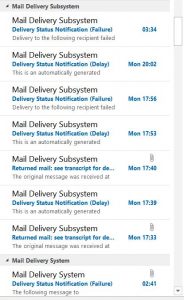
    It’s a very common problem to, out of the blue, start to get lots and lots of ‘mail delivery failure’ type emails but unfortunately there’s not a lot we can do to stop this.

    Short explanation

    The ‘Undeliverable Email’ Notifications Problem
    The ‘Undeliverable Email’ Notifications Problem

    When spammers send out their spam emails they need to pretend these emails are from a legitimate source otherwise they won’t be successfully delivered. Every email has certain information extra attached to it such as a sender address so you know who it’s from. Spammers will fake this information to make sure the emails get through spam filters so if you’re suddenly receiving a lot of ‘mail delivery failure’ messages, there’s a very good chance someone is sending out spam emails pretending to come from your email address.

    The good news is it’s probably nothing personal, it’s unlikely to affect your domain adversely in the long-term, and the problem normally tails off after a week or two

    Longer explanation

    From my experience, the problem usually spikes within the first week and only lasts about 2 or 3 weeks in total.

    The best way to understand why this happens, in my opinion, is to think about it like this:

    Imagine if Jim didn’t want to receive a letter in the post from Bob but Bob wanted to send a letter to Jim anyway. If, when Bob puts his letter to Jim in the post, he puts the ‘sender’ address on the back of the envelope as someone else other than himself, Jim wouldn’t know the letter was from Bob until he actually received it and opened it.

    Just like a letter you receive in the post, emails also have a ‘sender’ address that can be ‘faked’ or ‘spoofed.’

    In the example above, Bob is the email spammer – he wants to send emails to Jim (and millions more) about things like fake watches and pharmaceuticals – but his emails would be easily caught by spam filters because Bob is a known spammer. Jim, on the other hand, is just one of millions of random recipients. And the sender address on the back of the ‘envelope’ is yours because you’re not a known spammer so emails from you pass easily through the spam filter… although it could actually be anybody’s address used as the ‘sender’

    So, here is why you’re getting so many ‘Undeliverable Email’ Notifications:

    1. Bob sends his millions of emails out to random recipients,
    2. Bob puts the ‘sender’ address as yours,
    3. the spam filters see that these emails are from, they know you’re not a spammer, so they let these emails through the filter,
    4. Jim, on the other hand, opens the email from Bob and sees it’s spam so marks it accordingly
    5. after a while, the spam filters begins to suspect you are a spammer
    6. the spam filters begin to reject emails from you they now think you’re a spammer
    7. you start getting ‘undeliverable email’ notifications as these emails are rejected and sent back to what they believe are the ‘sender’ i.e. you
    8. now his email’s are getting rejected, Bob starts to use a different ‘sender’ address
    9. your ‘undeliverable email’ notifications begin to tail off as Bob is now using someone else’s address as the ‘sender’ address

    So, the bad news is that there is no way we can talk to Bob directly to ask him nicely to not use your email address as the ‘sender’ address

    The good news is that it’s nothing personal, there shouldn’t be any long-term damage to your domain name, and the problem should naturally stop after a few weeks all by itself